
Transaction Details
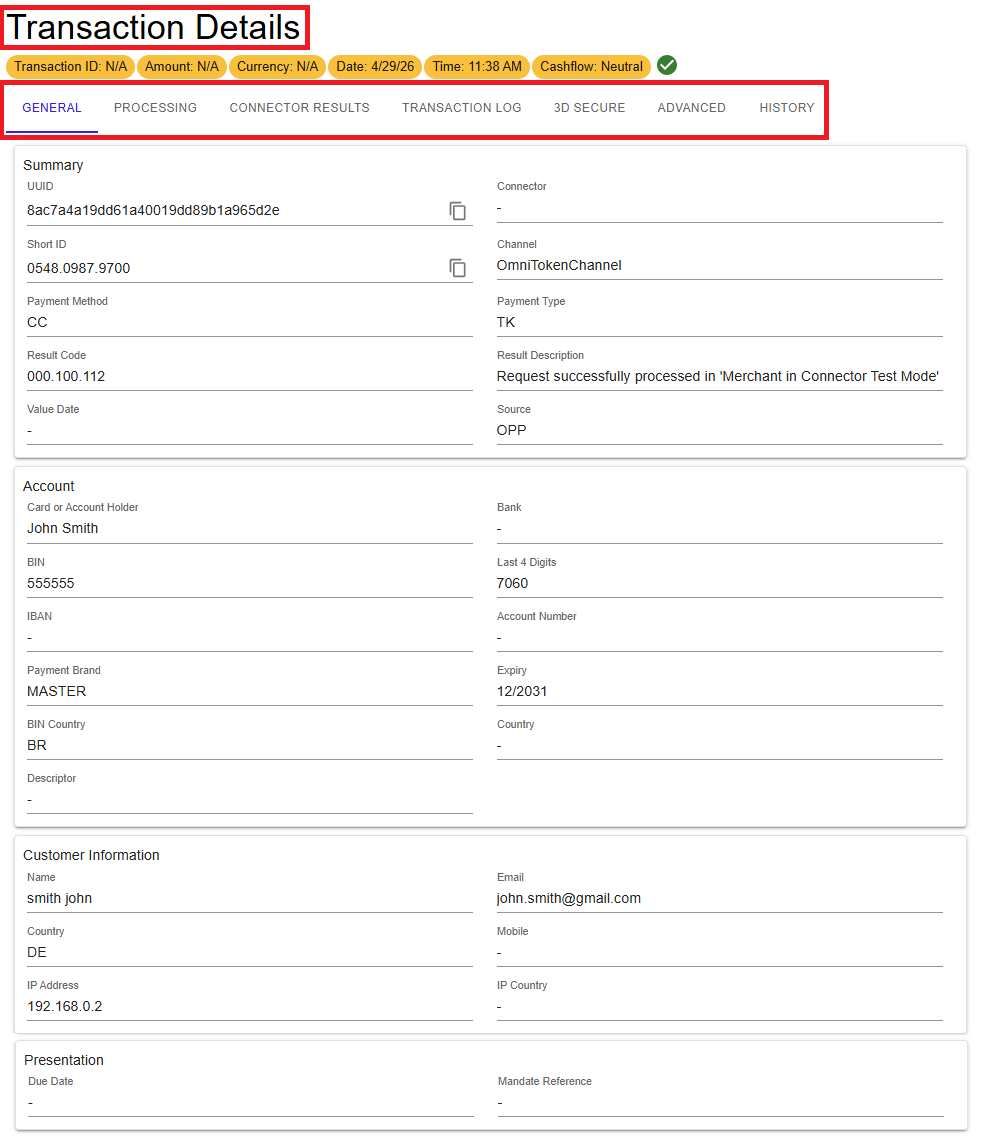
The Transaction Details window provides a comprehensive view of all information related to a specific transaction.
Most transaction data corresponds to the previous portal, but has been reorganized to improve clarity and usability.
This view brings together all relevant transaction data in one place, allowing users to review processing results, investigate issues, and understand how a transaction was handled end to end.
Figure 1: Transaction Details – overview and navigation tabs
How to access Transaction Details
- Navigate to the Transactions view.
- Open a transaction by selecting the arrow icon or using the copy action in the results table.
Transaction Summary
At the top of the Transaction Details window, the most important transaction data is displayed at a glance.
- Transaction ID
- Amount
- Currency
- Date and Time
- Cash Flow
The transaction summary remains visible while navigating between tabs.
Transaction Detail Tabs
Each tab focuses on a specific aspect of the transaction lifecycle, allowing targeted investigation.
- GENERAL
- PROCESSING
- CONNECTOR RESULTS
- TRANSACTION LOG
- 3D SECURE
- ADVANCED
- HISTORY
Transaction Log
The Transaction Log provides detailed processing information for troubleshooting and analysis.
Transaction logs can be exported as files for further analysis. Export in HTML or PDF format is not supported.
History
The History tab shows related transactions within the same session, typically within a limited time window. Transaction logs can be exported for further analysis. For a complete overview, see Transaction Detail Tabs.
Summary
The Transaction Details view provides a structured, end-to-end overview of transaction processing. By organizing data into dedicated sections, it enables efficient investigation and issue resolution.
- Start with the Summary to quickly assess transaction status before diving into details.
- Use the tabs to isolate issues (for example, Processing vs Connector Results).
- Check the History tab to understand related transaction steps within the same session.
- Export transaction logs for deeper analysis outside the portal.