
Transactions – Overview and Search Filters
The Transactions view in the Merchant Portal is the primary reporting and investigation tool for merchants and PSPs. It provides centralized visibility into payment activity across accounts and enables efficient monitoring, reconciliation, and customer support workflows.
Designed specifically for reporting use cases, the Transactions view allows users to search, filter, and analyze transaction data using flexible criteria. It is not intended for real-time monitoring or business analytics, but rather for efficient investigation and reporting of historical transaction activity.
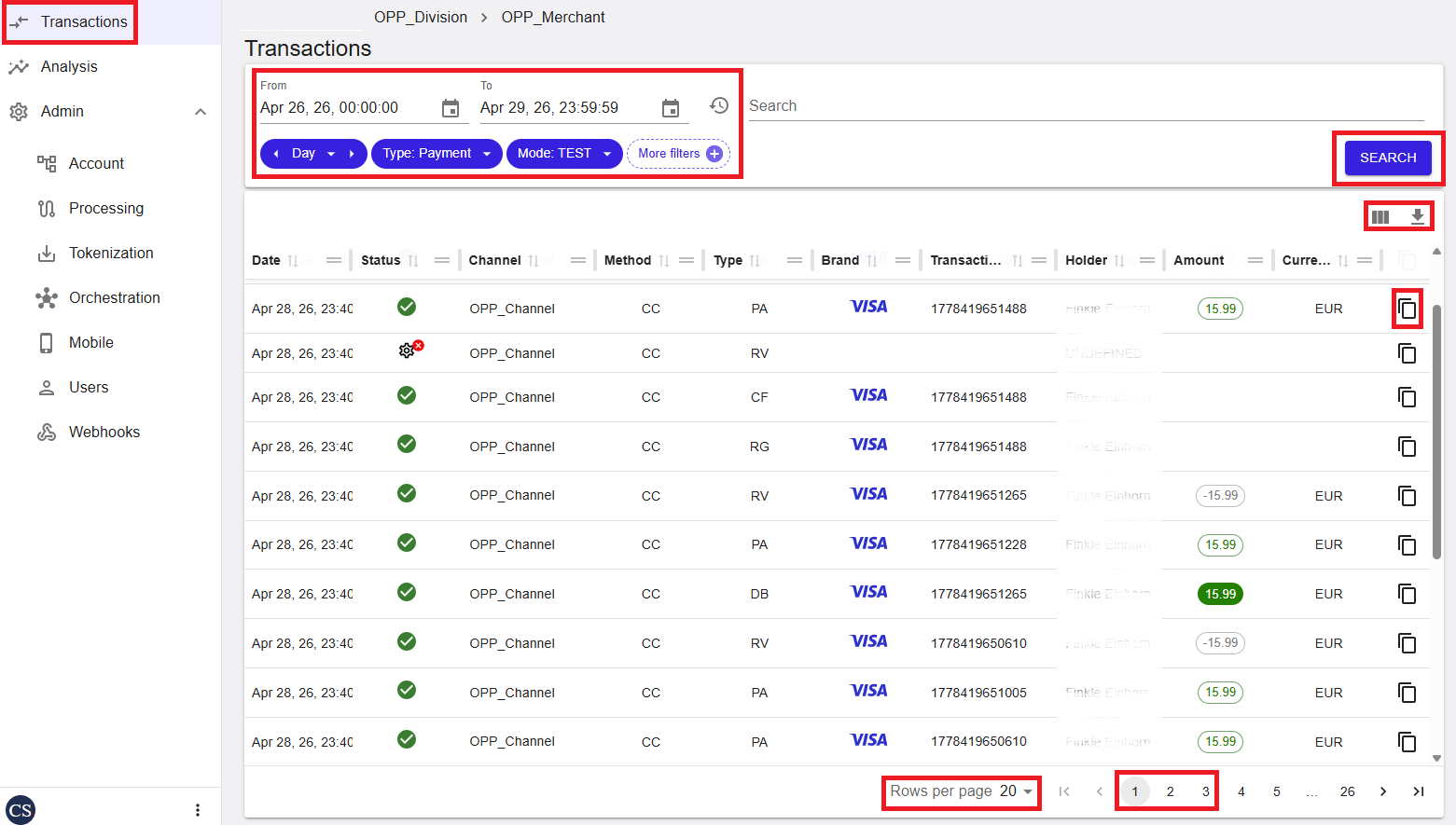
Figure 1: Transactions – main list view
Where to find this screen
- In the left navigation menu, select Transactions.
- From the Account Tree, select the channel or merchant account you want to search on.
Search Bar and Quick Filters
At the top of the Transactions screen, quick filters define the mandatory scope of the search before execution.
- Date range – Select a From and To date and time.
- Day / Week / Month / Year – Switch views and navigate periods.
- Type – Select Payment or Risk Management.
- Mode – Select LIVE, External Test, or Internal Test.
- More filters – Opens the advanced filter dialog.
Select SEARCH to retrieve matching transactions.
Transaction List
The transaction list displays results in a table format. Each row represents a single transaction.
Columns shown include:
- Date
- Status
- Channel
- Method
- Type
- Brand
- Transaction ID
- Holder
- Amount
- Currency
The interface displays up to 1,000 transactions. For larger datasets, use the Export function.
Advanced Search Filters
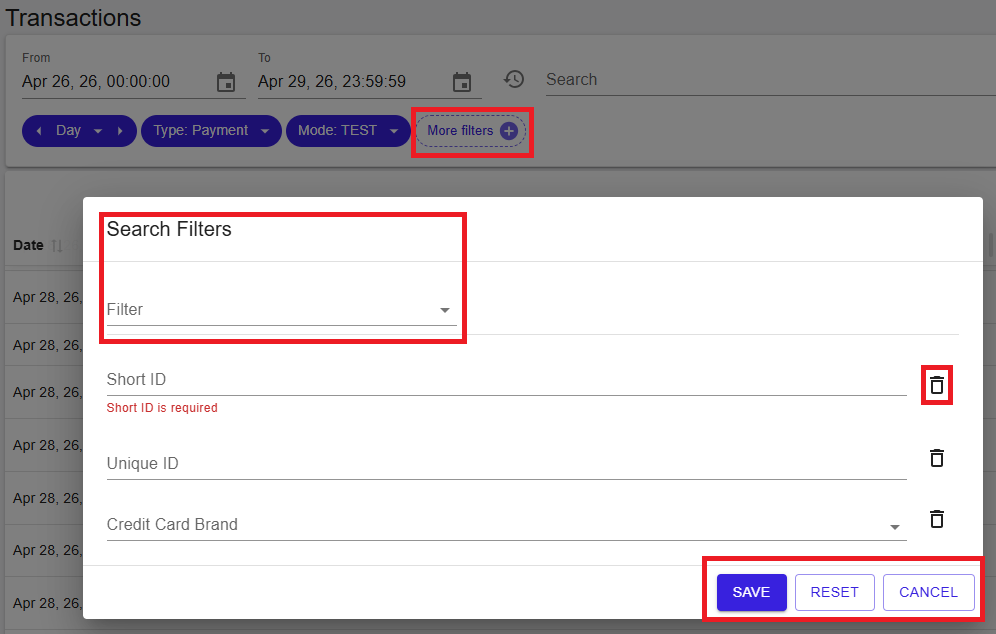
Select More filters to refine your search.
Figure 2:
Available Advanced Filters
All previously available filters remain supported, although some have been renamed:
- Custom parameters – formerly “criterion name”
- Connector – formerly “clearing institute”
Filter Actions
- SAVE
- RESET
- CANCEL
Intelligent Search
The search field supports dynamic and intelligent filtering.
- Type keywords to trigger automatic filters.
- Use double quotes for multi-word values.
- Search using operators such as > or < for amounts.
- Combine values for faster searches.
Transaction View Customization
Users can enable, disable, and reorder columns. Layouts are saved per user and persist across sessions.
Transaction Export
Export up to 100,000 transactions for reporting purposes.
Exports are generated in CSV format using UTF-8 encoding, ensuring compatibility with standard tools.
Transaction Details
Selecting a transaction opens a detailed view with structured tabs.
- Summary
- Account
- Customer
- Implementation
- Processing
- Connector Result
- 3D Secure
- Advanced (Custom Parameters)
- History
The History tab shows related transactions within the same session. Transaction logs can be exported for further analysis. For more information, see Transaction Details.
Summary
The Transactions view is the central reporting interface, enabling efficient investigation, filtering, and export of transaction data.
- Always start with a narrow time range to improve performance and accuracy.
- Use the search box for quick filtering instead of opening multiple advanced filters.
- Combine filters strategically (for example, Date + Type + Transaction ID) to reduce result noise.
- Use quotes for exact matches when searching for values with multiple words.
- Switch to Export for large datasets – the UI is limited to 1,000 rows.
- Save your preferred column layout to speed up repeated investigations.