
Transaction Details
The Transaction Details window provides a comprehensive view of all information related to a specific transaction. It is accessible directly from the transaction search results by clicking on a transaction row in the list.
This view brings together all relevant transaction data in one place, allowing users to review processing results, investigate issues, perform selected follow-up actions, and understand how a transaction was handled end to end.
All data displayed in this view is derived from the underlying transaction processing systems and reflects the information available at the time of processing.
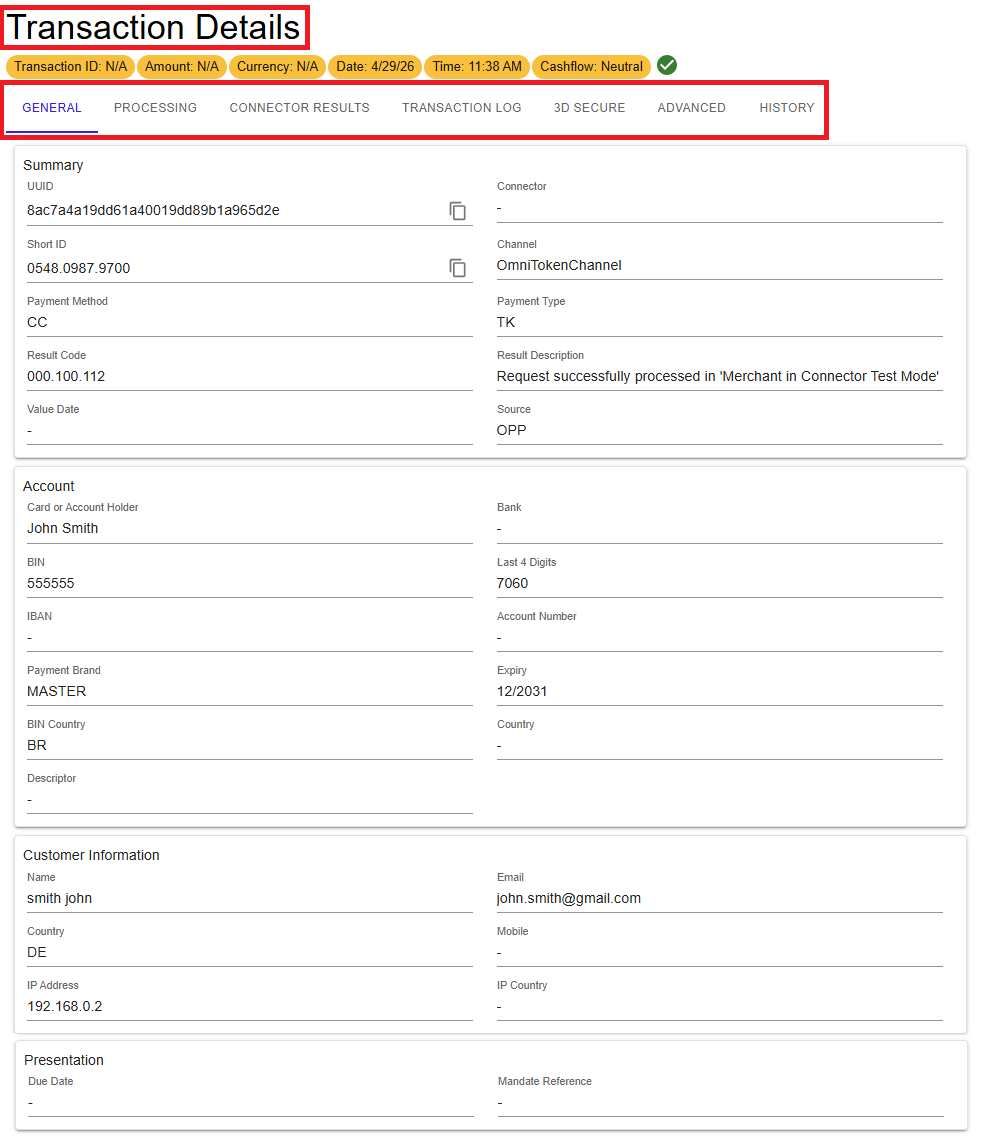
Figure 1: Transaction Details – overview and navigation tabs
How to access Transaction Details
- Navigate to the Transactions view.
- Click on any transaction row in the results list.
Transaction Summary
At the top of the Transaction Details window, the most important transaction data is displayed at a glance. This summary provides an immediate overview before exploring the detailed information available in the tabs below.
- Transaction ID
- Amount
- Currency
- Date and Time
- Cash Flow
The transaction summary remains visible while navigating between tabs, making it easy to keep context while reviewing additional details.
Back Office Operations
Back office actions such as Refund, Capture, and Reversal are available directly from this view when applicable. For more information, see Back Office Operations.
Transaction Detail Tabs
Transaction information is organised into dedicated tabs, allowing targeted review of specific aspects of the transaction lifecycle.
- GENERAL
- PROCESSING
- CONNECTOR RESULTS
- TRANSACTION LOG
- 3D SECURE
- ADVANCED
- HISTORY
General
The General tab provides a high-level summary of the transaction and is typically the first place to review transaction information.
- Processing Status – A summary of the current transaction outcome.
- Account Information – Details about the payment instrument used for processing.
- Customer Information – Customer data provided in the original request, if available.
- Presentation – Mandate reference and due date, where applicable.
Processing
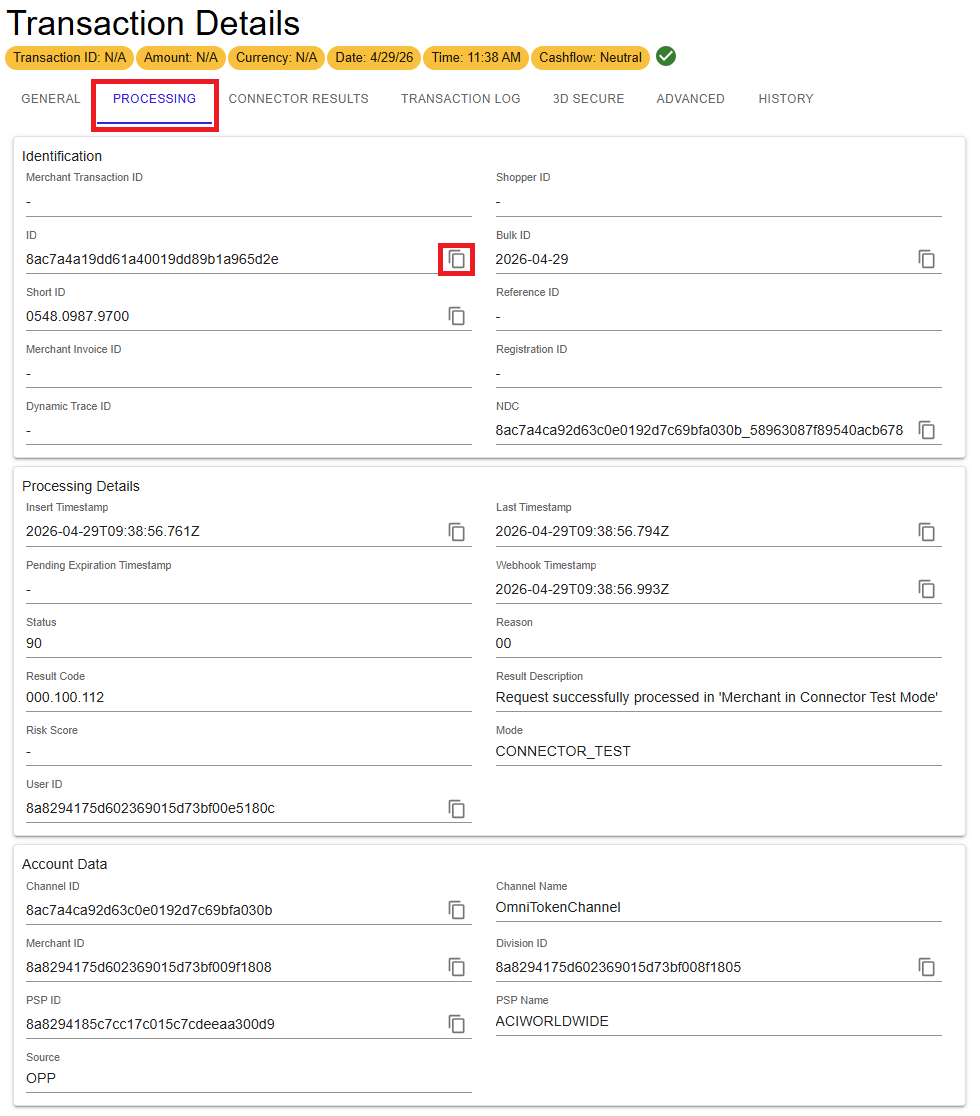
The Processing tab provides detailed technical information about how the transaction was handled within the platform.
The Processing tab is organised into distinct sections, including Identification, Processing Details, Account Data, Connector Details, and Merchant Account information.
- Identification – All identifiers associated with the transaction, including internal and external IDs.
- Processing Details – Timestamps, status values, result code, and result description.
- Account Data – Information about the channel and entity used during processing.
- Connector Details – Response-related information associated with the outgoing processing flow.
- Merchant Account – Information about the merchant account selected during dispatching.
This tab is typically used for technical troubleshooting and validation of transaction execution.
Figure 3: Processing tab
Connector Results
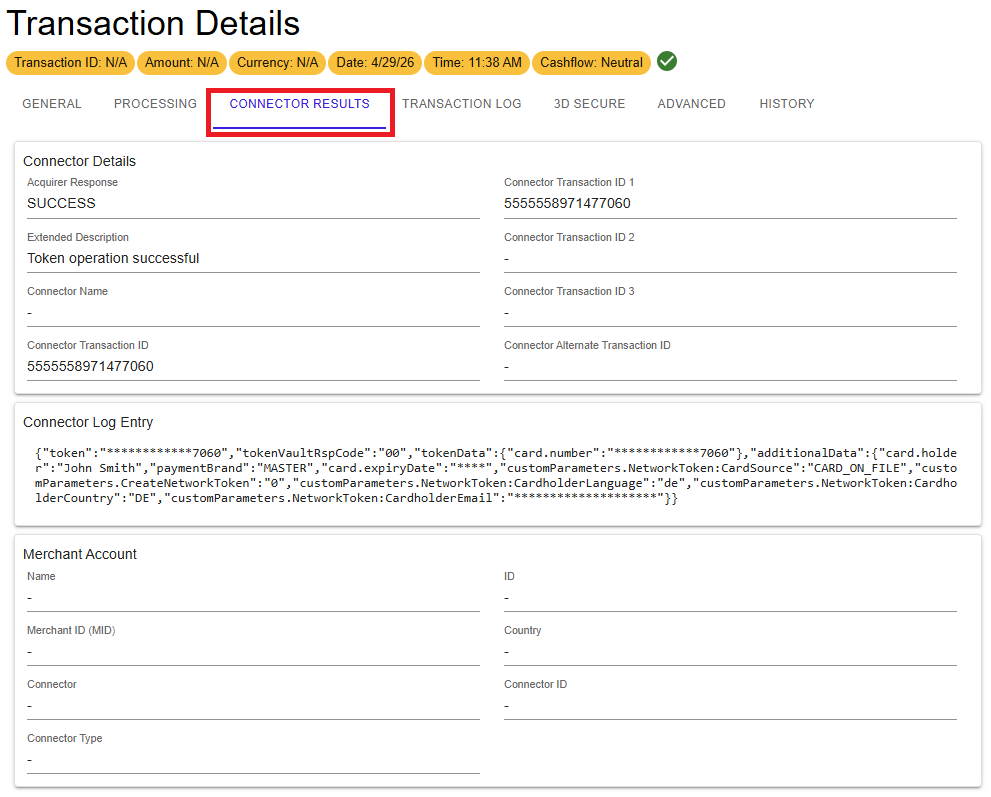
The Connector Results tab contains response data returned by the external connector used to process the transaction.
- Acquirer Response – High-level result returned by the connector.
- Extended Description – Additional connector response details.
- Connector Transaction IDs – Identifiers assigned by the external system.
- Connector Log Entry – Detailed response payload, where available.
- Merchant Account – Information about the merchant account associated with the connector processing path.
This information is useful when comparing portal data with connector or acquirer-side systems.
Figure 4: Connector Results tab
Transaction Log
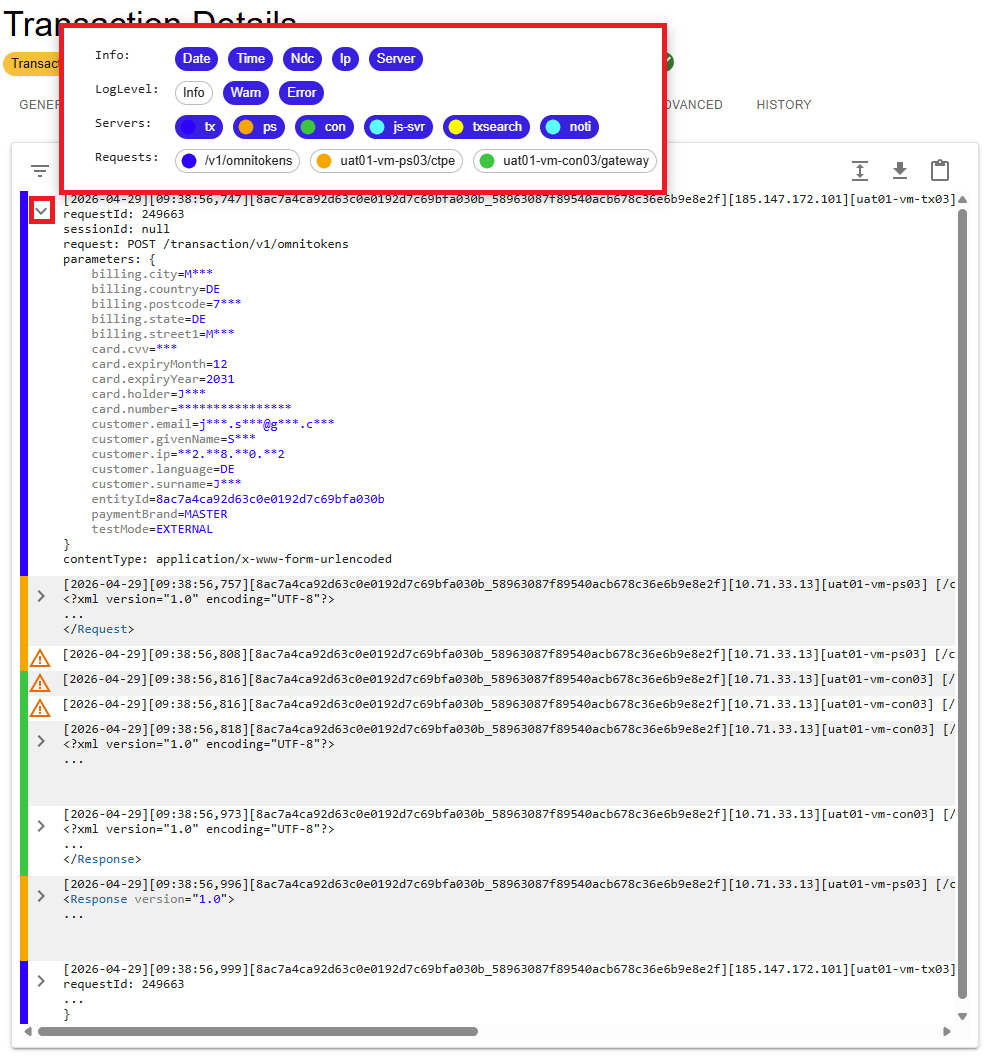
The Transaction Log tab provides the full log trace and message flow within the platform that was involved in processing the transaction.
This view supports detailed troubleshooting by exposing request and response activity, timestamps, involved systems, and message payloads.
The log view includes advanced filtering and display options:
- Display Filters – Toggle the visibility of fields such as Date, Time, NDC, IP, and Server.
- Log Level Filters – Show or hide entries by severity level: Info, Warning, and Error.
- Server Filters – Focus on logs from specific processing components or system layers.
- Request Filter – Isolate a single request-response flow for targeted troubleshooting.
Additional actions are available directly in the interface, including expanding all log entries, exporting logs, and copying content to the clipboard.
Figure 5: Transaction Log overview
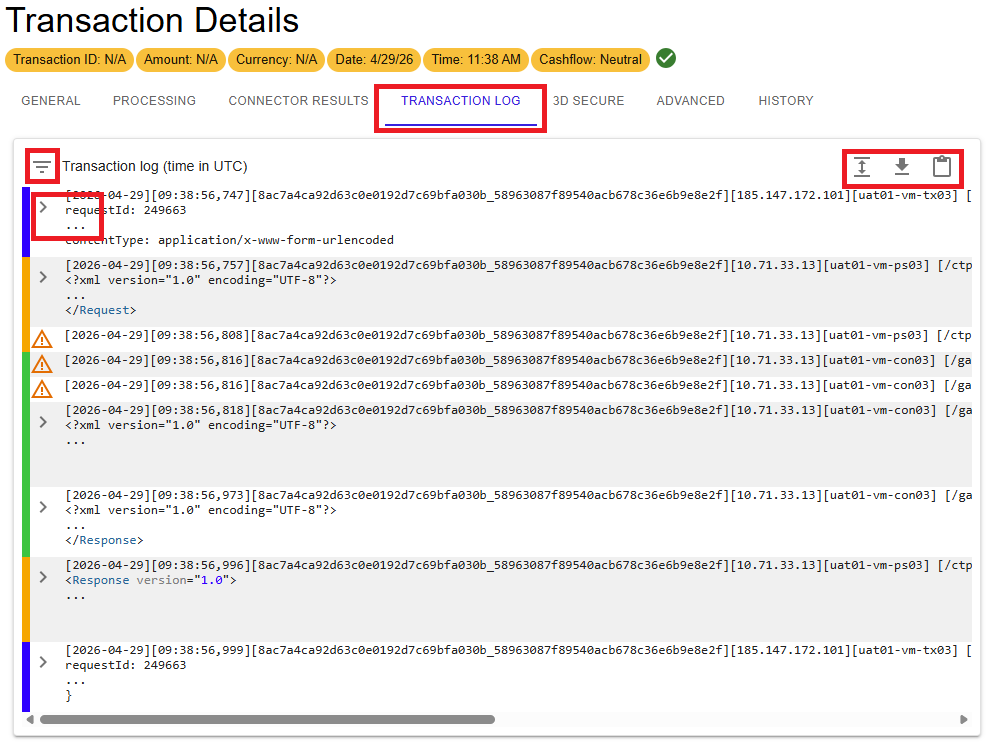
Figure 6: Transaction Log – detailed view and filter options
Transaction logs can be exported as files for further analysis. Export in HTML or PDF format is not supported.
3D Secure
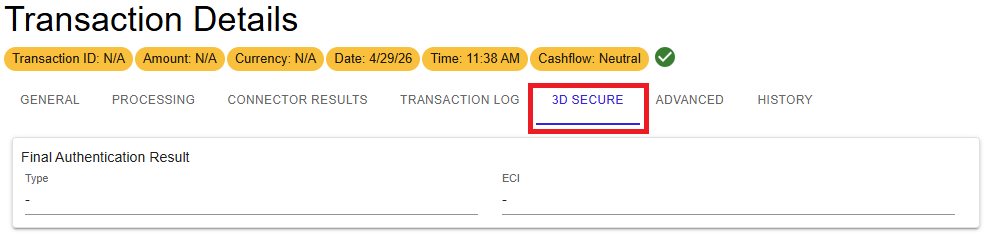
The 3D Secure tab provides information about the 3D Secure authentication workflow. It is relevant for transactions where 3D Secure was part of the processing flow.
- Authentication Type – Indicates the type of authentication flow used.
- ECI – Electronic Commerce Indicator associated with the 3D Secure result.
This tab is particularly useful for authentication troubleshooting and fraud-related analysis.
Figure 7: 3D Secure tab
Advanced
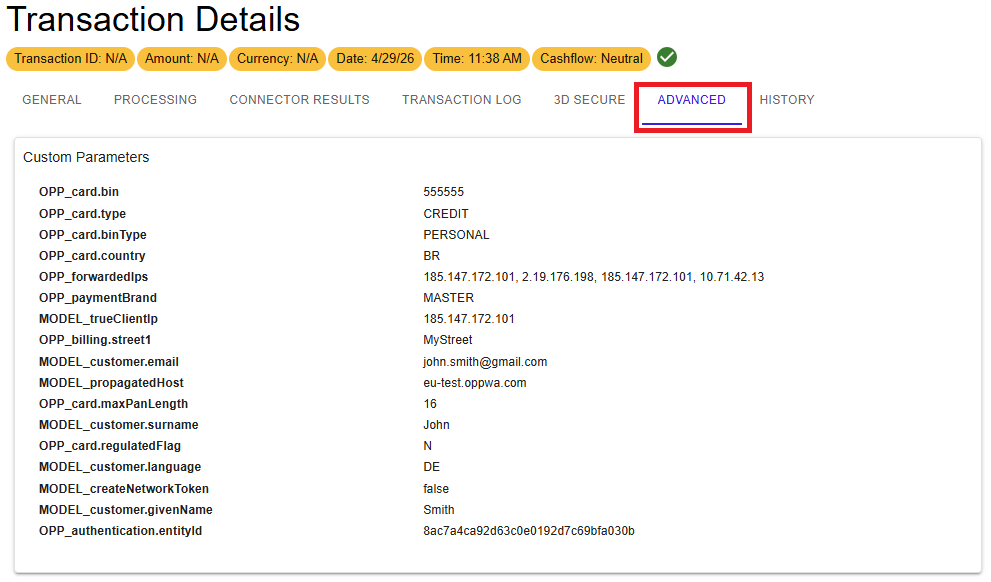
The Advanced tab provides access to advanced transaction data, specifically custom parameters and additional technical fields that were included in the original transaction request or generated during processing.
This information is primarily used for debugging, technical validation, and advanced analysis.
Figure 8: Advanced tab – custom parameters
History
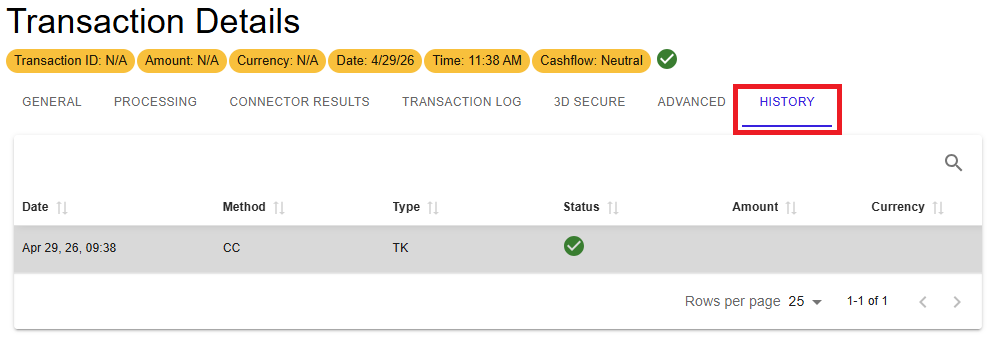
The History tab shows all transactions related to the same payment session, providing a complete view of the transaction lifecycle across the platform.
This includes follow-up operations such as captures, refunds, reversals, and other related entries.
Selecting a transaction from the history list opens its Transaction Details view, allowing you to move between related transactions for further investigation.
Figure 9: History tab
WPWL Options
For transactions processed using the Web Payment Widget (WPWL), an additional icon may appear in the Transaction Details view if WPWL options were used.
Selecting this icon displays the WPWL-specific configuration that was applied to the transaction.
Summary
The Transaction Details view provides a structured, end-to-end overview of transaction processing. By combining summary data, tab-based technical details, transaction history, and back office operations, it supports efficient investigation, troubleshooting, and lifecycle tracking.
- Start with the Summary to quickly assess transaction status before diving into details.
- Use the tabs to isolate issues (for example, Processing vs Connector Results).
- Cross-check multiple tabs when investigating incomplete or unexpected data.
- Check the History tab to understand related transaction steps within the same session.
- Use the Transaction Log for deep troubleshooting and request-level analysis.
- Brand information may not always be available for all transaction types, depending on the underlying processing data.
- Export transaction logs for deeper analysis outside the portal.