
API Tokens
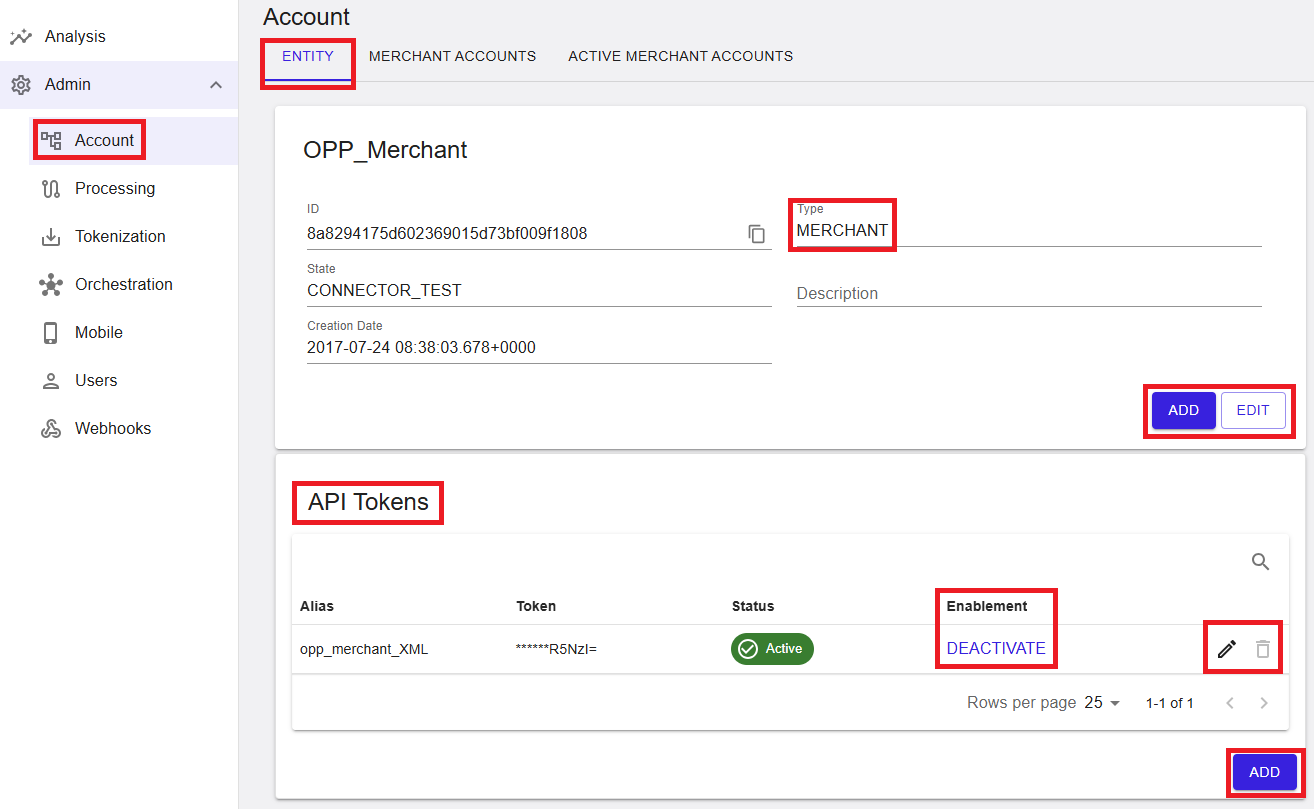
This screen shows the Account area with the ENTITY tab selected at the Merchant level. It is used to review merchant entity details and manage merchant‑specific API Tokens, where permitted.
Where to find this screen
- In the left navigation menu, select Admin → Account.
- Select the ENTITY tab at the top of the page.
- Ensure a Merchant is selected in the hierarchy (PSP → Division → Merchant).
To manage API Tokens, navigate to Administration > Account, select the relevant merchant entity from the account tree, and open the Entity tab. The API Tokens menu will appear under the Entity Management section, displaying a list of all tokens currently available for that merchant.
API Tokens
API Tokens are used to access the Merchant Portal API and process transactions. Each token is associated with a specific merchant entity and can be used to process transactions on that entity and all channels available under it.
The API Tokens section lists all tokens currently available for the selected merchant.
Figure 1: API Tokens – merchant‑level token management
What you see in the table
- Alias – A descriptive name for the token.
- Token – The token value (masked for security).
- Status – Indicates whether the token is active.
- Enablement – Shows the available enablement action (for example, DEACTIVATE).
Add API Token
To create a new token, click the Add button in the token table. Once the token is generated, a dialogue will display it on screen.
⚠️ Important: For security reasons, the token will not be shown again after this dialogue is closed. You are responsible for copying or downloading it and storing it in a safe and secure location for future use. Losing the token will require generating a new one.
From the dialogue, you can either Copy to Clipboard or Download the token as a file. After closing the dialogue, the token will be active and ready to be used for processing.
Figure 2: New API Token created – token shown once (copy/download)

Edit API Token
To edit a token, click the Edit action on the corresponding row in the token table. You can update the alias (display name) of the token. Click Save to apply the change.
Figure 3: Edit API Token – update alias

Deactivate API Tokens
To deactivate a token, click the Deactivate action on the corresponding row in the token table.
⚠️ Deactivating a token will prevent it from processing transactions and may impact your integration. A warning dialogue will appear asking you to confirm the action. Click OK to proceed.
This is a reversible operation. A deactivated token can be activated again by clicking the Activate button.
Figure 4: Deactivate API Token – confirmation dialog

Delete API tokens
To delete a token, click the Remove action on the corresponding row in the token table.
⚠️ Deleting a token may impact processing and is an irreversible operation. A warning dialogue will appear asking you to confirm. Once deleted, the token cannot be retrieved.
Figure 5: Delete API Token – confirmation dialog

Summary
The ENTITY tab at the merchant level provides a consolidated view of merchant details and API token management. It allows you to review entity attributes and manage the API token lifecycle, subject to your assigned permissions.