
Tokenization
The Tokenization section is used to configure token-related functionality, including network token usage and integration with external token providers. It provides configuration for both internally managed tokens and externally supplied tokens.
Figure 1: Admin – Tokenization overview
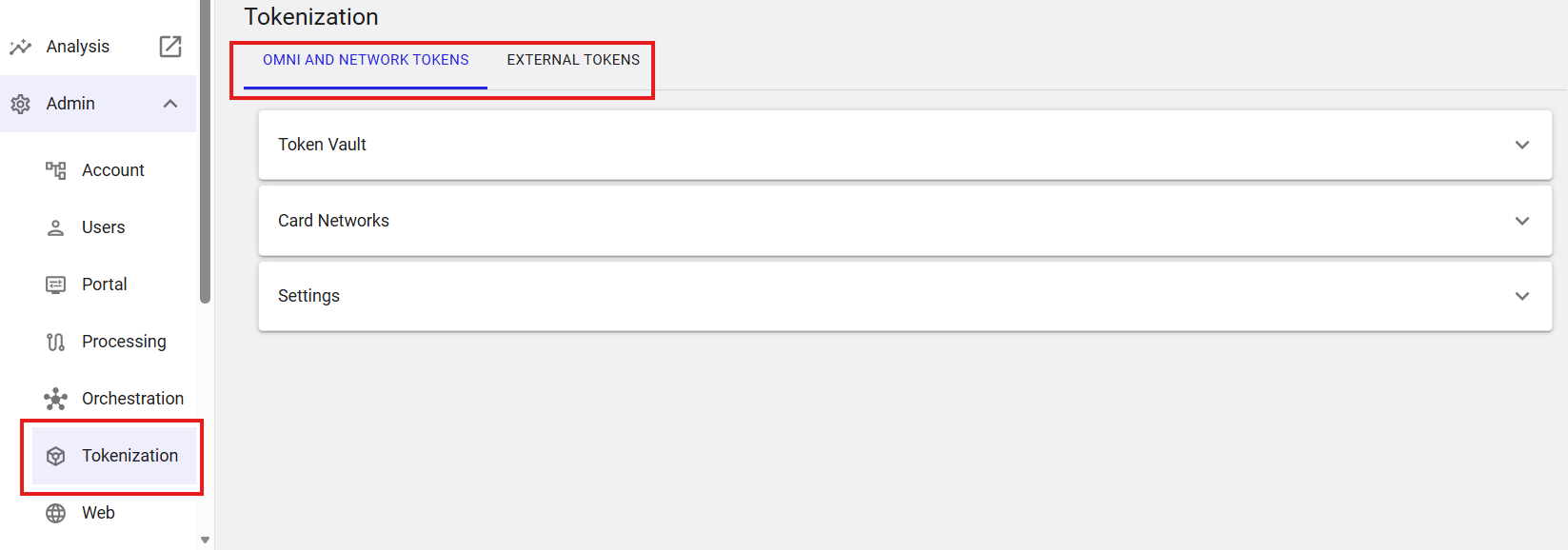
Where to find this screen
- In the left navigation menu, select Admin.
- Select Tokenization.
Tokenization Tabs
- OMNI AND NETWORK TOKENS
- EXTERNAL TOKENS
Omni and Network Tokens
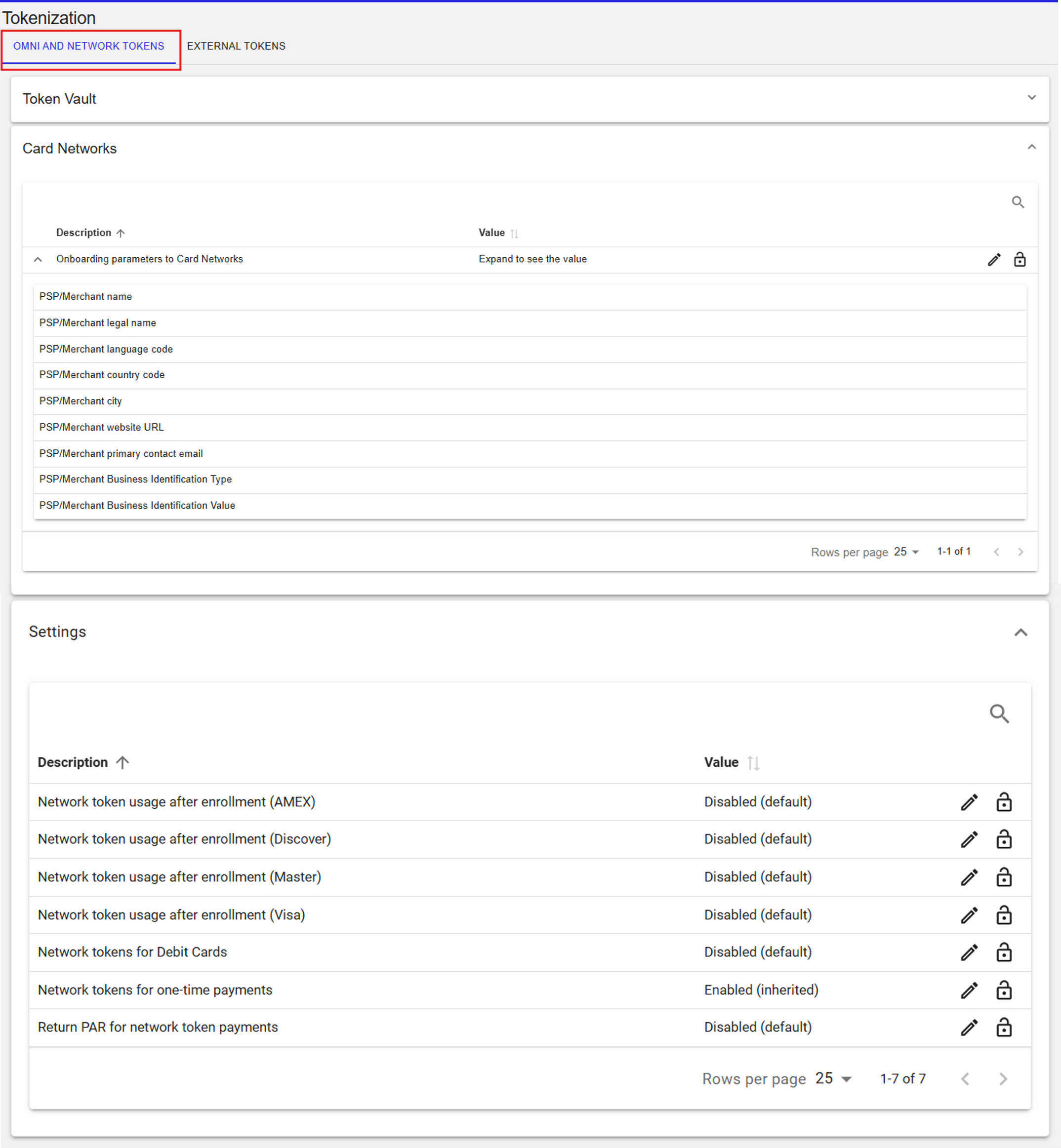
The Omni and Network Tokens tab is used to configure network token support and onboarding data required by card networks.
Figure 2: Omni and Network Tokens – main view
Token Vault
The Token Vault section represents the secure storage used for tokenized credentials. This section is informational and reflects the configured token vault for the selected scope.
Card Networks
The Card Networks section contains onboarding parameters required by card networks and onboarding section for network token enablement.
- PSP/Merchant name
- PSP/Merchant legal name
- PSP/Merchant language code
- PSP/Merchant country code
- PSP/Merchant city
- PSP/Merchant website URL
- PSP/Merchant primary contact email
- PSP/Merchant Business Identification Type
- PSP/Merchant Business Identification Value
Card Networks (RiRo)
| Name | Description | Value |
|---|---|---|
| Onboarding parameters to Card Networks | Onboarding parameters required to register and enrol the merchant with card network tokenisation schemes, including merchant identity, location, and contact details. | Configured values |
Newtork Token Onboarding
The Onboard Merchant to Token Vault section enables merchant onboarding to the Token Vault, including card network enrollment for VISA and Mastercard. This section becomes available only after all required onboarding parameters have been saved.
Figure 3: Onboard to Token Vault section
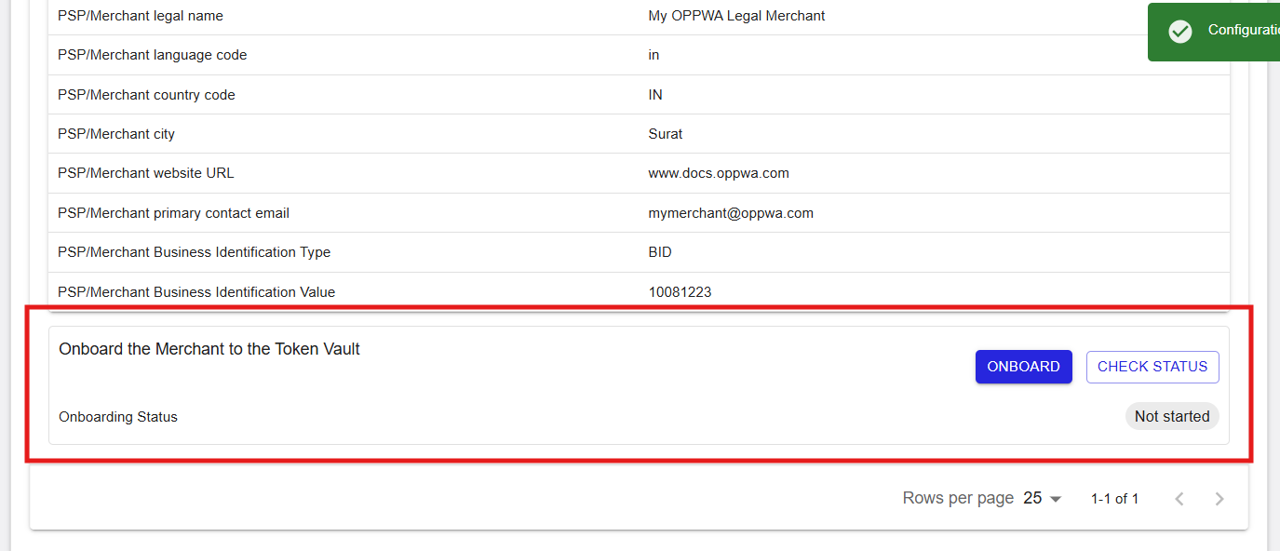
Click Onboard to initiate the merchant onboarding process to the Token Vault. Once onboarding is initiated, the status is automatically updated to Pending. Use the Check Status button to retrieve and view the latest onboarding status and verify whether the onboarding process has been completed successfully.
Figure 4: Onboarding Status Updated to Pending

Once Token Vault onboarding is completed, a new Card Network Enrollment section becomes available. By default, all supported schemes are displayed with a status of Not Started. Click Enroll for the desired card scheme to initiate network token enrollment.
Figure 5: Card Network Enrollment section
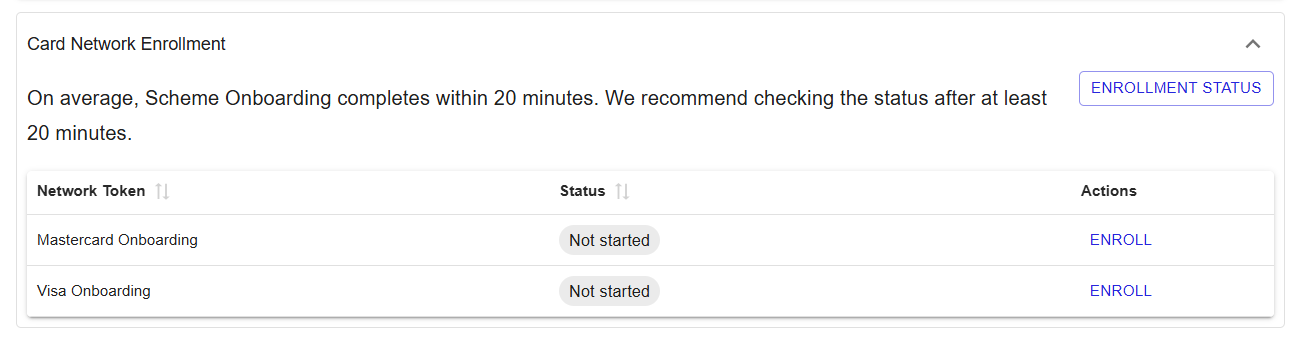
After clicking Enroll, the enrollment status is automatically updated to Pending while the scheme network enrollment request is being processed.
Figure 6: Enrollment Status Updated to Pending
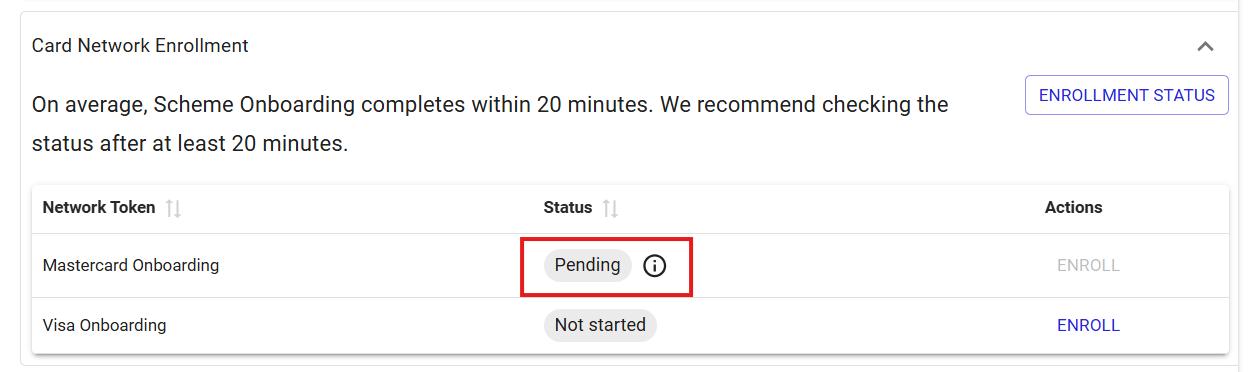
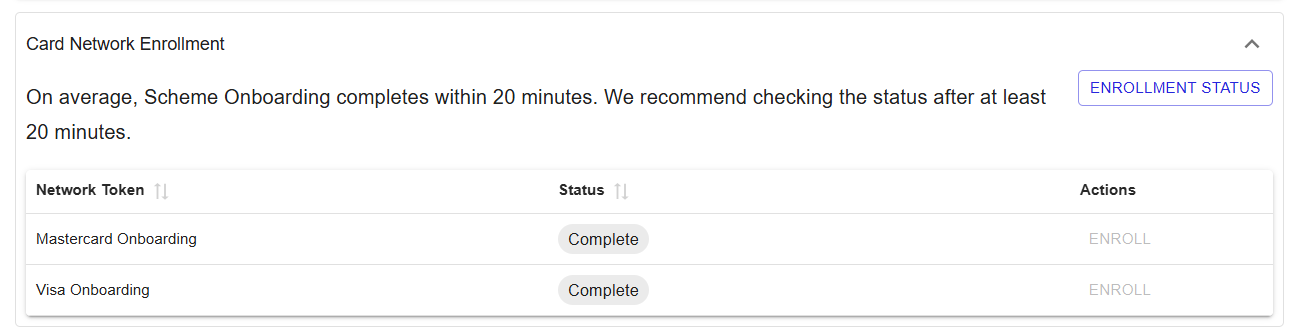
Click Enrollment Status to retrieve and view the most recent status of the scheme network enrollment process.
Figure 7: All Scheme Enrollments Completed Successfully
Settings (Network Tokens)
- Network token usage after enrollment (AMEX)
- Network token usage after enrollment (Discover)
- Network token usage after enrollment (Mastercard)
- Network token usage after enrollment (Visa)
- Network tokens for Debit Cards
- Network tokens for one‑time payments
- Return PAR for network token payments
Network Token Settings (RiRo)
| Name | Description | Value |
|---|---|---|
| Network token usage after enrollment (AMEX) | Uses AMEX network tokens for processing after successful enrollment. | Enabled / Disabled / Inherited |
| Network token usage after enrollment (Discover) | Uses Discover network tokens for processing after successful enrollment. | Enabled / Disabled / Inherited |
| Network token usage after enrollment (Mastercard) | Uses Mastercard network tokens for processing after successful enrollment. | Enabled / Disabled / Inherited |
| Network token usage after enrollment (Visa) | Uses Visa network tokens for processing after successful enrollment. | Enabled / Disabled / Inherited |
| Network tokens for Debit Cards | Applies network tokenisation to debit card transactions. | Enabled / Disabled / Inherited |
| Network tokens for one‑time payments | Applies network tokenisation to one‑time payment transactions in addition to recurring and credential‑on‑file use cases. | Enabled / Disabled / Inherited |
| Return PAR for network token payments | Returns PAR for network token payments. | Enabled / Disabled / Inherited |
External Tokens
The External Tokens tab is used to configure support for tokens provided by external tokenization services.
Figure 8: External Tokens – settings
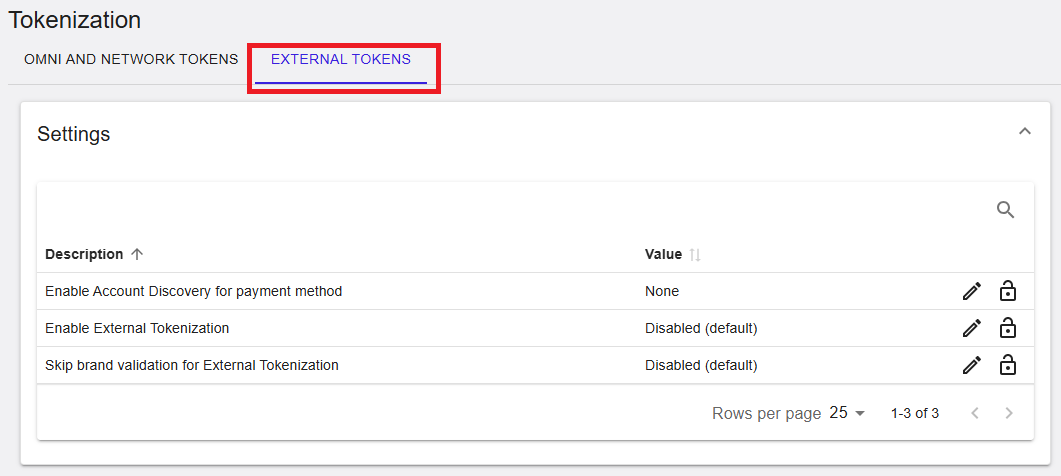
Settings (External Tokens)
- Enable Account Discovery for payment method
- Enable External Tokenization
- Skip brand validation for External Tokenization
External Token Settings (RiRo)
| Name | Description | Value |
|---|---|---|
| Enable Account Discovery for payment method | Enables Account Discovery to identify existing tokenised credentials for the selected payment method. | Configured value |
| Enable External Tokenization | Enables integration with an external tokenization provider for storing and retrieving payment credentials. | Enabled / Disabled / Inherited |
| Skip brand validation for External Tokenization | Skips card brand validation during the external tokenization flow. | Enabled / Disabled / Inherited |
Summary
The Admin → Tokenization section provides configuration for both network‑managed and externally supplied tokens. It supports card network onboarding, network token usage control, and integration with external tokenization providers.