
User Interface Overview
The Merchant Portal user interface provides structured navigation, contextual information, and access to merchant configuration and operational data.
Understanding how the interface is organized helps you efficiently navigate the portal and perform daily operations.
If a user is assigned to multiple entities, a selection screen is displayed after login, allowing the user to choose which entity to access.
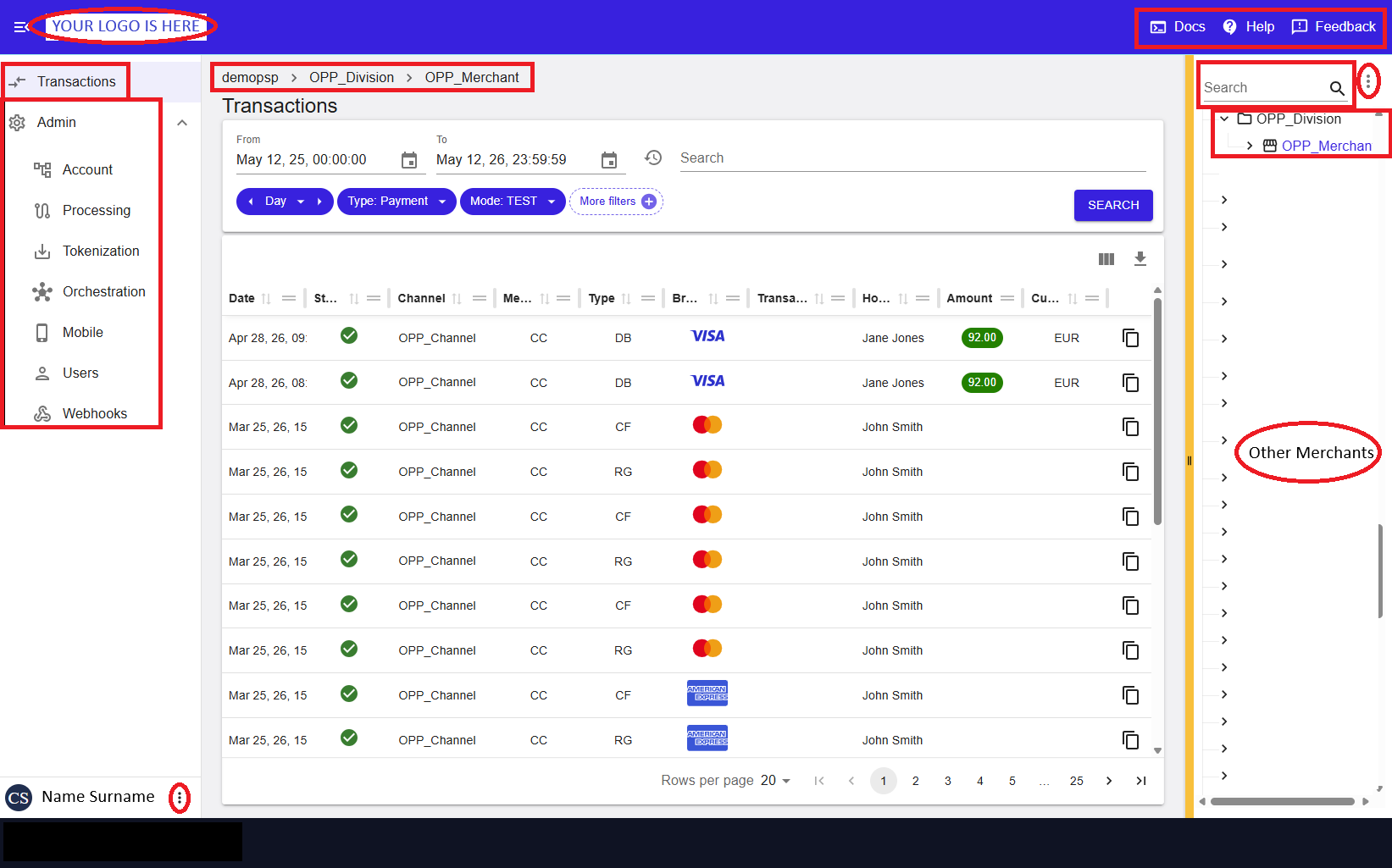
Figure 1: Merchant Portal – Account page overview
Main Interface Areas
Primary Navigation Menu
The Primary Navigation Menu on the left side provides access to the main functional areas of the Merchant Portal.
- Transactions
- Analysis
- Administration
Within Administration, configuration areas include:
- Account
- Processing
- Tokenization
- Orchestration
- Mobile
- Users
- Webhooks
The selected item is highlighted. At the bottom of the menu, the signed‑in user is displayed, with access to user actions.
Breadcrumb Navigation
The breadcrumb at the top shows the current position in the account hierarchy and can be used to navigate to higher levels when available.
Header Utilities
The top‑right area provides quick access to:
- Documentation
- Help
- Feedback
User Options Menu
The user options menu provides access to personal settings and session controls, such as user preferences and sign-out.
Account Tree
The Account Tree (entity panel) allows navigation across available account structures.
- Select the active account context
- Switch between entities
- Ensure operations apply to the correct account
The selected entity determines the data displayed in the main content area.
Changing the selection updates the active context and refreshes the data displayed across the interface.
Main Content Area
The main content area displays details and available actions for the selected entity.
The combination of the selected navigation menu item and the active account context determines the content displayed in the main area.
- Account details and status
- Tabs for related views
- Configuration and operational data
- Actions (Add, Edit, etc.), depending on permissions
Transaction Work Area
Within the main content area, the transaction work area is used to view and manage transactions.
- View transaction lists
- Open transaction details
- Perform supported actions (for example, refunds or captures)
The content displayed depends on the selected navigation entry and user action.
Navigation Principles
- The selected account context is critical
All data and actions depend on the Account Tree selection - The content reflects your selection
Navigation menu and account selection determine what is displayed - Available features depend on your role
If a feature is not visible, it may not be enabled for your account
Customize Workspace
- Collapse or expand the navigation menu
- Adjust panel positioning (for example, Account Tree)
- Save layout preferences
Next Steps
- Transaction Search – locate and analyze transactions
- Transaction Details – review processing data
- Back Office Operations – perform refunds, captures, or reversals
Summary
The Merchant Portal interface combines structured navigation, hierarchical context, and centralized configuration access to support efficient merchant management.
Need help?
If a feature described in this guide is not visible, it may not be available for your role or account configuration. Contact our support team for assistance.