
Shopify Embedded Cards
Last updated: October 19, 2026
Overview
Our Shopify Embedded Cards Payment Plugin enables merchants to deliver a fully native, secure, and frictionless card‑payment experience directly inside Shopify Checkout.
Built on a server‑to‑server architecture, the solution eliminates redirects, hosted payment pages, and COPYandPAY widgets, ensuring customers complete their card payments entirely within the Shopify environment.
This architecture enables:
A seamless, embedded checkout journey
Customers remain in Shopify Checkout, boosting trust and reducing abandonment.Secure, compliant handling of card data
Card details are encrypted within Shopify and securely decrypted on the platform side, minimizing PCI exposure for merchants.Support for 3D Secure and advanced card flows
Authentication and issuer‑required steps are orchestrated server‑side for reliability and control.Deep integration with the Payments Orchestration Platform
Access routing, tokenization, notifications, fraud services, and payment lifecycle controls from a unified platform.
For merchants upgrading from redirect‑based flows or adopting embedded checkout for the first time, the Embedded Cards Plugin offers a faster, more secure, and conversion‑optimized way to accept major card brands in a fully native Shopify experience.
How it works
Compatibility
Our plugin supports the following versions:
- Node 18
- Remix 2.7.1
- React 18.2
- Prisma 5.12
Before you start
Create/confirm your Merchant Portal account & access
- Ensure you have access to the Payments Orchestration Platform portal (UAT/Sandbox for testing, Production for live).
- Ensure you have the correct merchant/PSP credentials and permissions to configure payment settings.
- Configure your merchant account and the connector
- Enable Shop plugins for your entity via support channel
- Enable Automatic brand detection from Merchant Portal - Processing->Settings->Activate automatic Brand Detection
Obtain app credentials
- Generate or retrieve the required credentials from the platform tooling (e.g., Client ID/Secret, API keys, merchant identifier).
- Store credentials securely.
Confirm required data & processing setup
- Confirm which card schemes you will enable.
- Confirm required shopper/order fields needed by your downstream connector/acquirer setup.
- Confirm callback/webhook endpoints and allowed domains (if applicable).
Install
Marketplace listing: open in the Shopify App Store.
Option A — Shopify App installation
- Shopify Admin → Apps
- Locate ACI Worldwide Card Payments
- Click Install
- Approve permissions
Option B — Private/Custom distribution
- Use the installation link/package provided by us
- Install via Shopify Admin → Apps
- Verify the plugin appears in your payment settings
Configure
Configuration in Shopify Admin
- Go to Apps on the left navigation.
- Find ACI Worldwide Card Payments in the list of installed Apps to be redirected to the Payment Configuration page.
- Enter: (Refer to Onboarding configuration)
- Client ID in the Entity ID field (Test/Live)
- Client Secret / API Key in the API key field (Test/Live)
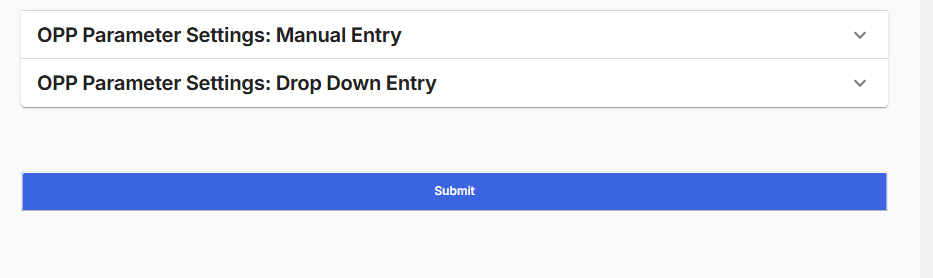
- Any additional required fields (OPP params, locale, etc.)
- Webhook decryption Key (you will get the same when you configure webhooks/notifications in merchant portal)
- Save
- On successfully saving the configuration, you will see a “Return to Shopify” button on the top of the page. Click it.
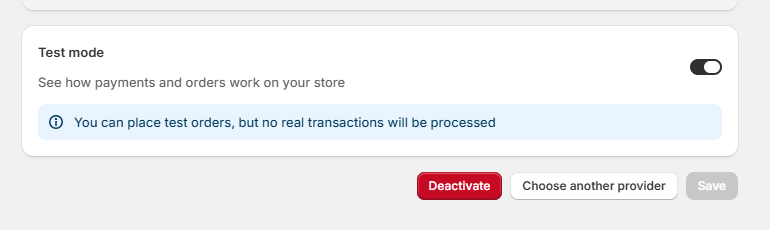
- You will be redirected to the Payment settings page of Shopify. Enable Test mode (if required) and click on the Activate button.
- Please note that while activating the App, as default, all payment logos will be enabled. Please select only those you plan to process and disable the rest. You can further change it in APP - Shopify Admin → Settings → Payments (ACI Payment app enabled), Click Manage under ‘Credit Card Payments by ACI Worldwide"
Onboarding configuration
| Field Name in Shopify Configuration | Merchant Portal Field Name | Mandatory/Optional | Comments |
|---|---|---|---|
| Entity ID | EntityId | Mandatory | From the Merchant Portal at the Merchant or Channel level, according to the Merchant Portal configuration setting of the Merchant accounts In Payments Orchestration Platform - Administration→ Account data |
| API Key | Access Token | Mandatory | From the Merchant Portal at the Merchant or Channel level, according to the Merchant Portal configuration setting of the Merchant accounts In Payments Orchestration Platform - Administration→ Account data → Merchant Info/Channel Info |
| Test Mode | NA | Mandatory | Applicable only for test environment, INTERNAL is to test with the simulator, EXTERNAL for the external test simulator. |
| Webhook URL | Prepopulated to configure Webhooks in the Merchant Portal | ||
| Use Store Locale | NA | Optional | |
| Card Settings - Enable 3DS | NA | Optional | Enable 3DS for transaction processing; prior 3DS configuration in the Merchant portal is required. |
| OPP Parameter Settings- Manual Entry | NA | Optional | Configure Additional Parameter to be sent in request (Valid OPP parameter is required) |
| OPP Parameter Settings- Drop Down Entry | NA | Optional | Configure Additional Parameter to be sent in request from the available list of Shopify parameters (Valid OPP parameter is required) |
Webhooks
Webhooks send real‑time updates from the Payment Orchestrator Platform to the plugin platform. They notify the plugin about:
- Payment state updates
- Token events
- Payment schedules
- Risk events
- Any transaction‑related changes
Webhooks must be configured for transaction updates to work correctly.
Merchant/PSP responsibilities
You must configure the webhooks and generate the Webhook Decryption Key in the Payments Orchestration Platform.
Steps to configure webhooks
- Log in to the Payments Orchestration Platform
- Select your division (e.g., OPP_Division)
- Navigate to Administration → Webhooks
- Click Add New Webhook
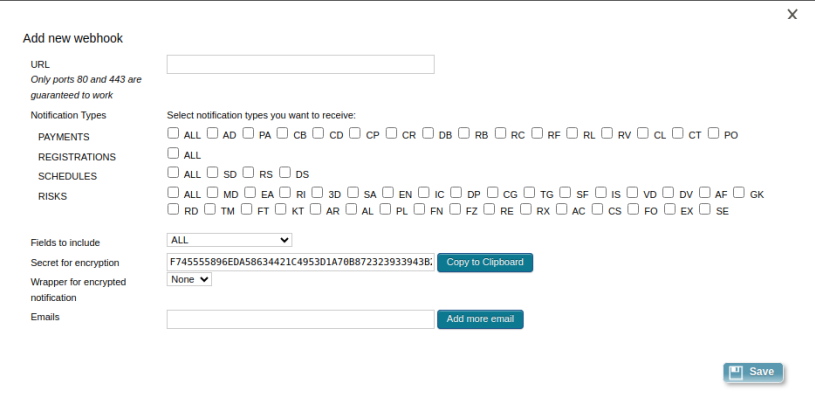
- Configure as follows:
| Field | Value |
|---|---|
| URL | https://<your-domain>/acipayment/process/notification |
| Notification Types | Select as required for your business |
| Fields to Include | Select as needed |
| Secret for Encryption | Copy this value and paste in Shopify under Webhook Decryption Key |
| Wrapper for Encrypted Notification | JSON |
| Emails | Add email addresses for notification alerts |
Figure 1: Steps to configure webhooks
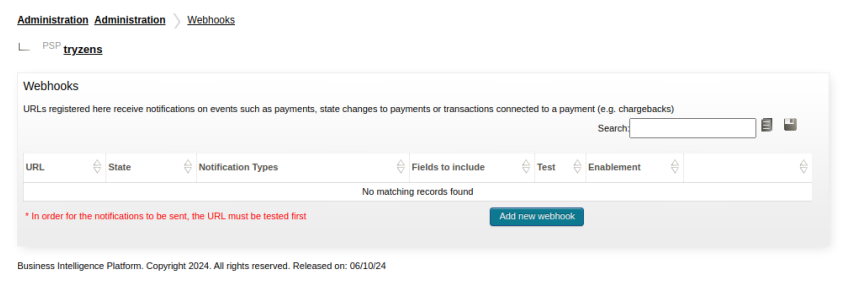
Figure 2: Steps to configure webhooks (continued)
Test & go live
Step 3: Test a transaction
Recommended test checklist:
- Test successful payment
- Test decline scenario (insufficient funds / invalid card)
- Confirm Shopify order status reflects payment result correctly
- Confirm reporting/transaction logs show expected references
Step 4: Go live
- Disable Test mode in Shopify Payment setting
- Replace UAT credentials with Production credentials
- Run a low-value live transaction to validate end-to-end
- Monitor first transactions in reporting
Step 5: Set your store currency
Ensure the Shopify store currency matches the settlement/processing currency configured in Merchant Portal (and supported by your acquiring setup).
Upgrading the app
- Shopify apps are automatically updated. If there are any change in required permissions in your store, you will be prompted to provide the same on accessing the App Payment configuration page.
- After upgrade, re-validate:
- Checkout rendering
- Order status updates
- Reporting/settlement behaviour
Screenshots
- Navigate to APP - Shopify Admin → Settings → Payments (ACI Payment app enabled), you will find ‘Credit Card Payments by ACI Worldwide"
- When App is in Production, you should not see test mode as visible in the screen below.
Figure 3: Screenshots
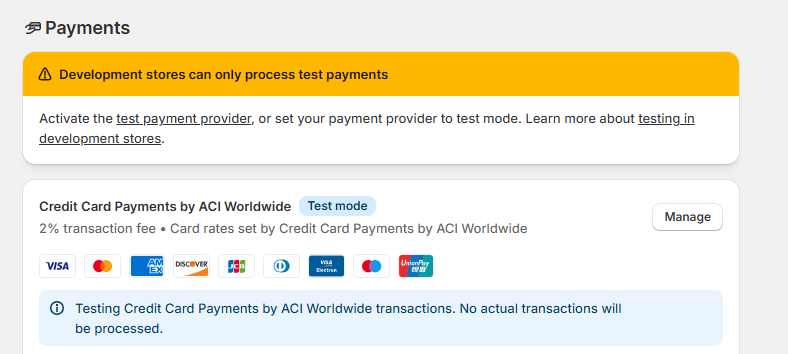
Figure 4: Screenshots (continued)
- Payment app configuration screen (credentials/environment)
Figure 5: Screenshots (continued)
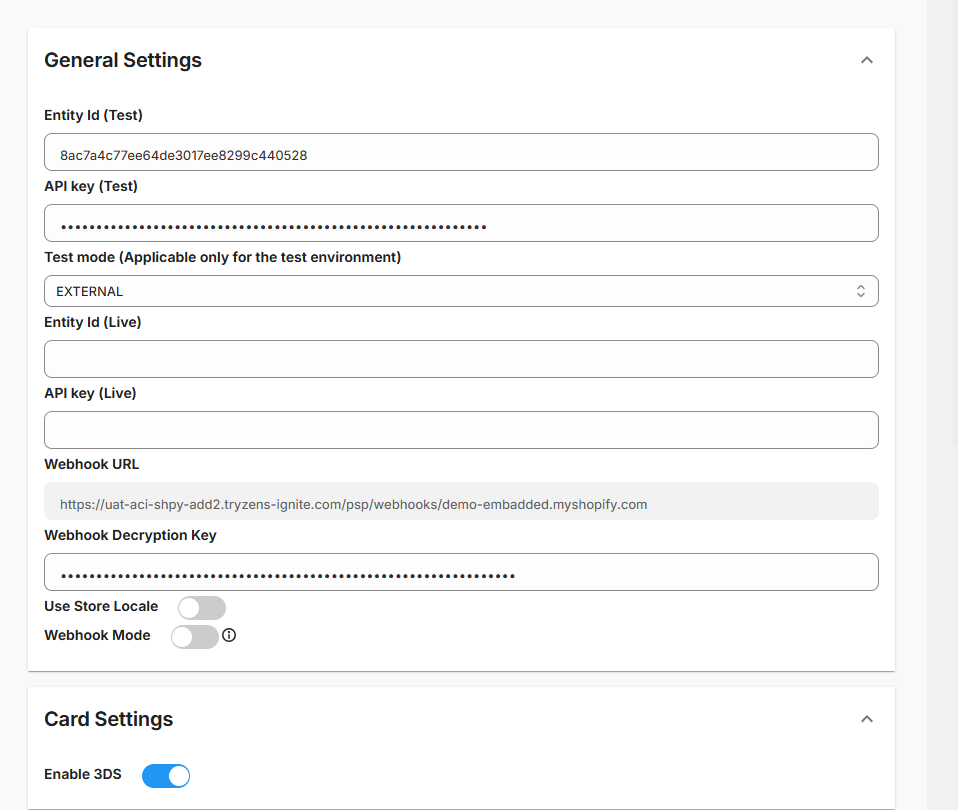
Figure 6: Screenshots (continued)
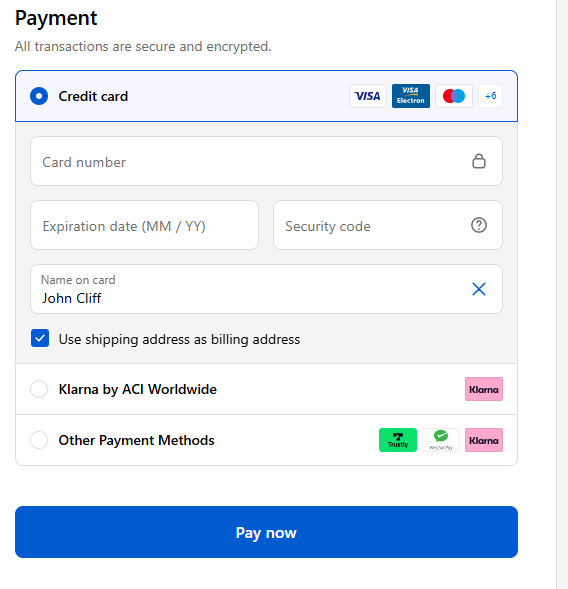
- On Shopify Checkout
Figure 7: Screenshots (continued)
Features
Payment types
| Payment Type | Supported | Comments | |
|---|---|---|---|
| Authorization (PA) | ✔ | ||
| Debit (DB) | ✔ | ||
| Credit (CD) | – | ||
Capture (CP) | Full | ✔ | |
| Partial | ✔ | ||
| Multiple | ✔ | ||
Refund (RF) | Full | ✔ | |
| Partial | ✔ | ||
| Multiple | ✔ | ||
Reversal (RV) | Full | ✔ | |
| Partial | ✔ | ||
| Multiple | ✔ | ||
| Receipt (RC) | – | ||
| Rebill (RB) | – | ||
Important Note:
The plugin supports all payment types listed above, but the actual availability depends on the payment brand and the connector configured to process the payment.
To use a specific payment type (e.g., Partial Capture, Multiple Refunds), the payment brand must support that operation, and the connector integration for that brand must also support it.
Please refer to the respective connector integration sheet for brand‑level support.
Features
We have standard plugin integration with Shopify using our Open Payment Platform Integration option, which gives you access to all the features and uses the Server to Server integration to present payment options to your shoppers
| Feature | Supported | Comments | |
|---|---|---|---|
| Supported Brands | ✔ | VISA, MASTER, AMEX, DISCOVER, DINNER | |
| Supported Payment Methods | ✔ | CC | |
| Countries | ✔ | All Shopify‑supported countries | |
| Authorization Currencies | ✔ | ALL supported by Shopify | |
| Late Notification | ✔ | ||
Payment Facilitator | – | Can be supported if the connector has its own configuration for PayFac | |
| Recurring/Subscription | – | ||
| Reference ID | ✔ | ||
| Timeout Autoreversal | – | Supported based on the connector functionality | |
| TLS 1.2 | ✔ | ||
| Server-Server Integration | ✔ | ||
| Shopify Embedded Experience | ✔ | ||
| Internal Tokenization | – | ||
| Omni Tokenization | – | ||
| External Tokenization | – | ||
| Zero Authorization/ Account Verification | – | ||
| Digital Wallet | – | Apple Pay/Google Pay | |
| 3D Secure | ✔ | Using our MPI | |
| Airline Data | – | ||
| Settlement Reporting | – | Settlement reporting as per the specific brand connector in use. | |
| COPYandPAY OneClick Checkout (Save Card) | – | ||
| COPYandPAY widget or full-page redirect | – | ||
| Customization through standard COPYandPAY JS | – | using wpwlOptions | |
| Customization through standard COPYandPAY CSS | – | using wpwlOptions | |
| PayByLink | – | ||
| Manage Saved Card in User Profile | – | ||
| Download Audit Log | ✔ | Enable this through Shopify Support | |
| Guest Checkout | ✔ | ||
| Transaction identifier | ✔ | merchantTransactionID | |
| Fast Checkout | – | ||
| Fraud with Payment | ✔ | ||
| Standalone Fraud | – | ||
| PCI DSS 4 | ✔ | ||
Supported fields
These fields are automatically handled by the plugin through Shopify’s data model. No manual implementation by merchants is needed.
Important Note:
The fields listed below are the ones that are integrated through Shopify and passed by default to the payment platform. However, some payment brands may require additional fields that are not included in this standard integration.
Please review the payment brand’s connector documentation before starting the integration. If the connector requires additional static fields, the plugin provides a feature to pass such fields, please refer to the “Additional Static Fields” configuration section for details.
| OPP Field Name | Shopify Field |
|---|---|
| entityId | Derived from Admin |
| amount | amount |
| currency | currency |
| paymentType | kind |
| paymentBrand | Will derive from payment_method object |
| testMode | Admin derived |
| merchantTransactionId | id |
| customer.merchantCustomerId | Not available |
| customer.givenName | billing_address.given_name |
| customer.surname | billing_address.family_name |
| customer.phone | customer.phone_number |
| customer.mobile | customer.phone_number |
| customer.email | customer.email |
| customer.birthDate | Not available |
| customer.ip | Not available |
| billing.street1 | billing_address.line1 |
| billing.street2 | billing_address.line2 |
| billing.city | billing_address.city |
| billing.state | billing_address.province |
| billing.postcode | billing_address.postal_code |
| billing.country | billing_address.country_code |
| billing.houseNumber1 | Not available |
| shipping.street1 | shipping_address.line1 |
| shipping.street2 | shipping_address.line2 |
| shipping.city | shipping_address.city |
| shipping.state | shipping_address.province |
| shipping.postcode | shipping_address.postal_code |
| shipping.country | shipping_address.country_code |
| shipping.phone | shipping_address.phone_number |
| shipping.companyName | shipping_address.company |
| cart.items[0].name | item name |
| cart.items[0].merchantItemId | Not available |
| cart.items[0].quantity | 1 |
| cart.items[0].sku | sku |
| cart.items[0].price | Cart Total |
| cart.items[0].currency | Actual Currency should be mapped |
| cart.items[0].description | null |
| cart.items[0].tax | Not available |
| cart.items[0].totalAmount | Cart Total |
| cart.items[0].originalPrice | Not available |
| customParameters[SystemName] | Derive the values |
| customParameters[SystemVersion] | Derive the values |
| customParameters[moduleName] | Derive the values |
| customParameters[moduleVersion] | Derive the values |
| shopperResultUrl | Derive the values |
| Authorization | Generated through API |
| locale | merchant_locale |
| encryptedToken | Derived |
| customParameters[3DS2_enrolled] | Derived from Admin |
FAQ
Installation
How do I install the credit card app?
Shopify Admin → Apps → ACI Worldwide Card Payments → Install → Approve permissions.Can I use private installation?
Yes, via an installation link provided by us.How do I confirm installation?
The app should be visible under Apps and in Payment Settings.Do cards and APMs use the same app?
No, separate apps are required for credit cards and APMs.
Configuration
What credentials are required?
- Entity ID (Client ID)
- API Key / Client Secret
- Webhook decryption key
- Optional OPP parameters
Where is configuration completed?
- Shopify Admin
- Merchant Portal
How do I activate card payments?
Save configuration → Return to Shopify → Activate payment method.Is plugin enablement required?
Yes. Transactions will not be processed unless plugin functionality is enabled.What should always be validated before go-live?
Always confirm:- Required brands are configured in the merchant portal
- Merchant account is correctly attached
- Credentials match the correct environment
Do connectors require additional fields?
Yes. Some connectors require additional parameters.
Merchants must verify Shopify supports and provides these fields.Are recurring or instalment payments supported?
No, recurring and instalment payments are not supported.Are logos configurable?
Yes. Displayed logos depend on Shopify settings and enabled payment methods.
Testing Behaviour (Important)
Why do I see static card and customer data during testing?
Shopify may use static card and customer data during testing due to shopify platform limitations for credit card apps.What is the recommended testing approach?
Always validate flows in production (with controlled rollout) before full launch.
Troubleshooting
Card payments not visible in checkout
- App not activated
- Plugin not enabled
- Configuration incomplete
Transactions not processed
- Plugin functionality not enabled
- Incorrect brand configuration
- Merchant account not attached
Transaction fails or not authorised
- Invalid credentials
- Missing required parameters
- Incorrect Payments Orchestration Platform setup
Connector requires additional fields
- Required parameters not passed from Shopify
- Connector-specific fields missing
Transactions stuck in pending
- Webhook not configured
- Notification endpoint issue
Webhook not received
- Missing Payments Orchestration Platform webhook configuration
- Invalid endpoint or decryption key
Test vs Live issues
- Environment mismatch (credentials, accounts, configuration)
Refund / capture / reversal not working
- Must be triggered from Shopify order flow
- Supported only if connector allows these operations
Resources
- Installation guide (PDF): Shopify installation/user guide
- Marketplace listing: ACI Worldwide Card Payments
- Demo storefront (test environment): https://aciembedded.myshopify.com/ (access details available from your account manager)
After installing the plugin:
- Configure the plugin inside Shopify
- Configure merchant accounts, Credit Card Brands, and Merchant Account attachment in Payments Orchestration Platform
- Ensure all connector‑specific setups are completed
Get support
If you need help with installation, configuration, or troubleshooting, contact H24 with:
- Shopify store domain
- Environment (UAT/Production)
- Timestamp and transaction reference (Order ID + payment reference)
- Steps to reproduce + screenshots