
OpenCart
Last updated: October 19, 2026
Overview
Streamline your OpenCart store’s transactions with our payment plugin, ensuring secure and efficient payment processing.
Please note - Full functionality is tested in test environment (UAT) and production functional testing is pending.
Our OpenCart payment extension helps you launch or expand your business rapidly. If you are launching your business first time on OpenCart, we can help you to quickly roll out through our configuration capabilities. If you are already on OpenCart and thinking of expansion, we offer a wide variety of secure local and global payment options.
Our OpenCart extension which is built on Payments Orchestration Platform delivers a competitive advantage over payment gateways including payment processing optimization and advanced analytics through a single integration. We help you manage payments across multiple P2Ps, acquirers and banks across all channels — online, mobile or recurring — using a strategic, streamlined approach.
How it works
Compatibility
Our plugin supports the following versions:
- 4.0.2.3
Important
It is strongly recommended that the plugin installation is first completed and validated in a non‑production environment (for example, a QA or staging environment) before proceeding with installation in production.
This plugin is designed to work with the out‑of‑the‑box (OOTB) native OpenCart checkout.
If your store uses a custom checkout implementation or heavily modified checkout flow, additional customization by the merchant or their implementation partner (agency/integrator) may be required to ensure compatibility with the plugin.
Install
- Download the plugin from the OpenCart marketplace.
- Go to Admin > Extensions > Installer and upload the zip file you downloaded.
- Install the payments extension from the list of uploaded extensions.
- Go to Admin > Extensions > Extensions and select Payments from the drop-down.
- Install the payments extension from the payment extensions list. You can now edit its settings.
Configure
You need the Entity ID, API key and webhook decryption key from the Onboard step. The checklist below summarizes the steps; the field reference follows.
- In the admin panel go to Extensions > Extensions and choose Payments as the extension type.
- Click Edit next to the payment extension and complete the General Settings.
- Enter the Webhook Decryption Key. You get it when you set up the webhook in the Payments Orchestration Platform (see Onboard). The webhook delivers notifications and events for transactions to the plugin platform.
- Enable the relevant card or alternative payment methods.
- Add the brands required for your store.
Open the plugin settings
In the admin panel, access the payment settings:
- Navigate to the Admin Panel.
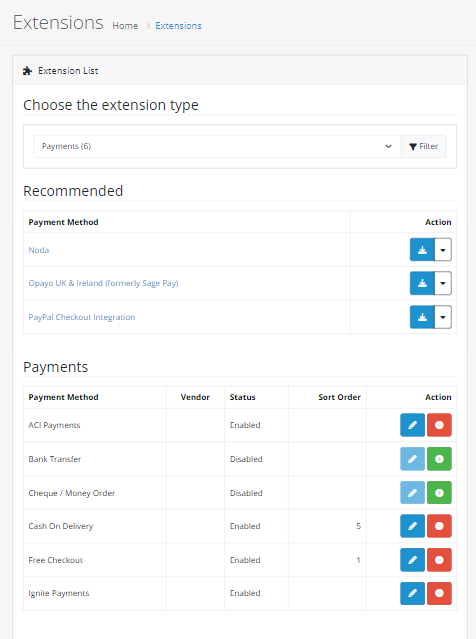
- Navigate to Extensions > Extensions, and choose Payments as the extension type (You will find two extensions listed):
- Tryzens_Ignite
- ACI_Payments
- Edit the ACI_Payments Extension
Click the Edit button next to the ACI_Payments extension.
Figure 1: Open the plugin settings
Field reference
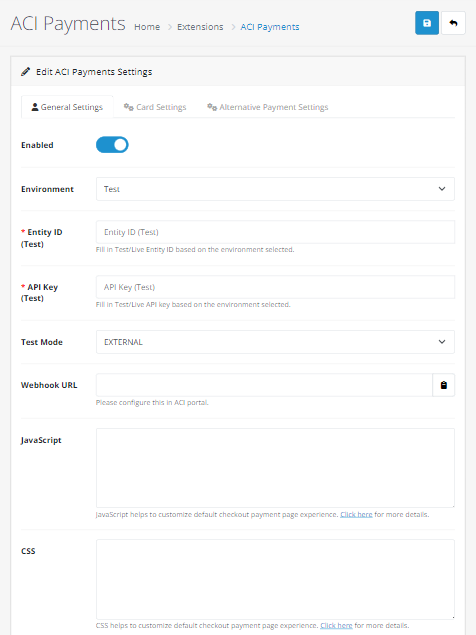
General Setting
| Field Name in OpenCart Configuration | Mandatory/Optional/Conditional | Possible Values | Comments |
|---|---|---|---|
| Enabled | Mandatory | Enabled or Disabled | Configure this to enable or disable the payment plugin |
| Environment | Mandatory | Test or Live | Test - For test environment Configuration Live - for Live environment Configuration |
| Entity ID (Test) | Mandatory | Entity ID of your Channel or Merchant from the Payments Orchestration Platform | Refer to onboarding configuration. |
| API Key (Test) | Mandatory | API of your Channel or Merchant from the Payments Orchestration Platform | Refer to onboarding configuration. |
| Entity ID (Live) | Mandatory | Entity ID of your Channel or Merchant from the Payments Orchestration Platform | Refer to onboarding configuration. |
| API Key (Live) | Mandatory | API of your Channel or Merchant from the Payments Orchestration Platform | Refer to onboarding configuration. |
| Test Mode | Mandatory | INTERNAL or EXTERNAL | Connector test mode
|
| Webhook URL | Mandatory | The value will be auto-populated to configure the webhook URL in Payments Orchestration Platform | |
| Javascript | Conditional | Use this option to customize the payment widget, while using Google Pay, providing gatewayMerchantId is mandatory. { Additional information - Advanced Options | |
| CSS | Optional | CSS helps to customize the default checkout payment page experience, possible examples, and options on Google Pay | |
| Webhook Decryption Key | Mandatory | Fill in the Secret for the encryption value generated during webhook endpoint creation in the Payments Orchestration Platform. |
Figure 2: General Setting
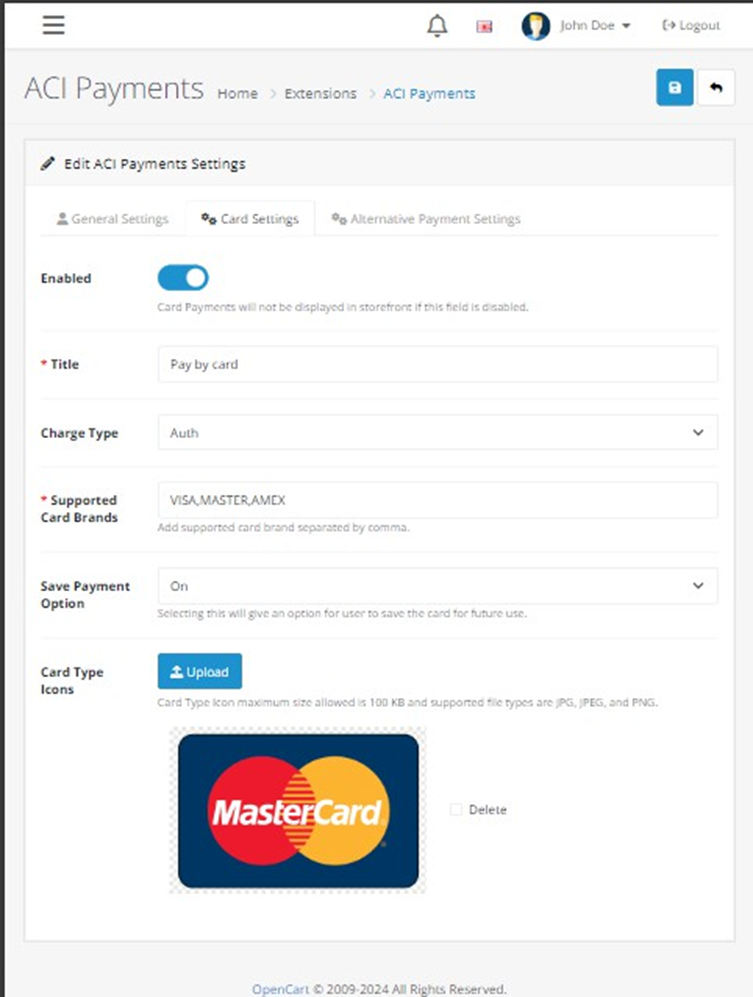
Card Settings
- Enabled - Yes/No
- Title - Any Text (It will be displayed on the checkout payment page)
- Charge Type – Authorization (PA)/Sale (DB)
- Supported Card Types - Authorization/Sale (Ex, VISA, MASTER, AMEX). You will get the brand codes - Customization – options & brands
- Card Type Icons – Multiple brand image upload
- Save Payment Option – Yes/No - Allow the consumer to save the card details for future use
Figure 3: Card Settings
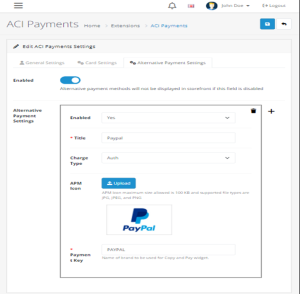
Alternative payment settings
- Enabled - Yes/No - If No, the payment method will not display in the storefront event it is enabled in the APM payment method settings.
This has a button called “Add Payment”. The APM payment config form will display if clicking on this button.
- Enabled - Yes/No
- Title - Any Text (It will be displayed on the checkout payment page)
- Charge Type – Authorization (PA)/Sale (DB) – As applicable for APM brand
- APM Icon - Single Image Upload
- Payment Key – Payment Method Key – You will get the Payment Key from Customization – options & brands
Note - Currently certified payment methods and its payment keys are -
- Google Pay – GOOGLEPAY
- Apple Pay – APPLEPAY
- Klarna - KLARNA_PAYMENTS_ONE
- PayPal – PAYPAL
Other APM’s and Payment methods can work out of the box as we do support all basic request parameters.
Figure 4: Alternative payment settings
Please refer to Configuration Guide for additional details.
Onboard
After plugin installation, please follow the instructions to configure the extension in OpenCart and in Payments Orchestration Platform using configuration details.
You will need to configure merchant accounts and brands in Payments Orchestration Platform which needs to work with checkout using plugins.
You will need to do the respective card or APM connector merchant account configuration in Payments Orchestration Platform as per the respective connector configuration details for brands to work with your shop.
- Enable plugins: use the Payments Orchestration Platform to enable the plugins with the assistance of your project team.
- Configure merchant accounts and brands: set up the required merchant accounts and brands in the Payments Orchestration Platform.
- Add webhooks: set up webhooks and subscribe to the relevant event types so that event updates reach the plugin platform. You obtain the decryption key here to complete the webhook configuration in the plugin platform.
- Test payments and the required functionality in your test store.
- Go live: when you are ready, complete the configuration for production and take your shop into production with the payment plugin.
Credentials from the Payments Orchestration Platform
To start processing with plugins, plugin configuration in the Payments Orchestration Platform needs to be enabled for your PSP or merchant. Without this configuration, you won’t be able to send transaction requests from the plugin platform to the payment platform for processing.
Please contact your account manager or project team to enable plugin usage from the Payments Orchestration Platform.
You will need the following information from the Payments Orchestration Platform to configure and onboard with the payment plugin:
| Field Name in OpenCart Configuration | Payments Orchestration Platform Field Name | Mandatory/Optional | Comments |
|---|---|---|---|
| Entity ID | EntityId | Mandatory | From the Merchant or Channel level, according to the Payments Orchestration Platform configuration setting of Merchant accounts In Payments Orchestration Platform - Administration→ Account data |
| API Key | Access Token | Mandatory | From Payments Orchestration Platform at the Merchant or Channel level, according to the Payments Orchestration Platform configuration setting of Merchant accounts In Payments Orchestration Platform - Administration→ Account data → Merchant Info/Channel Info |
Figure 5: Credentials from the Payments Orchestration Platform

Webhook configuration
The webhooks are HTTP-based callbacks that notify your plugin platform of all the events you subscribed for on an entity. Instead of constantly polling for updates, a webhook is set up once and only sends data when a specific event occurs. The events can be about tokens, payments, payment schedules, risks, or any transaction state updates related to payments or transactions connected to a payment, it is necessary to configure webhooks for seamless communication and transaction updates.
Merchant/PSP to configure webhooks and generate the webhook decryption key in the Payments Orchestration Platform for
webhook handling.
Steps:
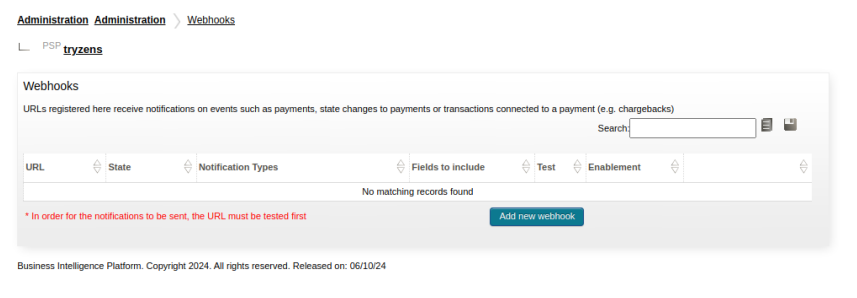
- Login to merchant dashboard (Payments Orchestration Platform)
- Select your division (here OPP_Division)
- Go to Administration - Webhooks
- Click on the “Add New Webhook” button
Figure 6: Webhook configuration
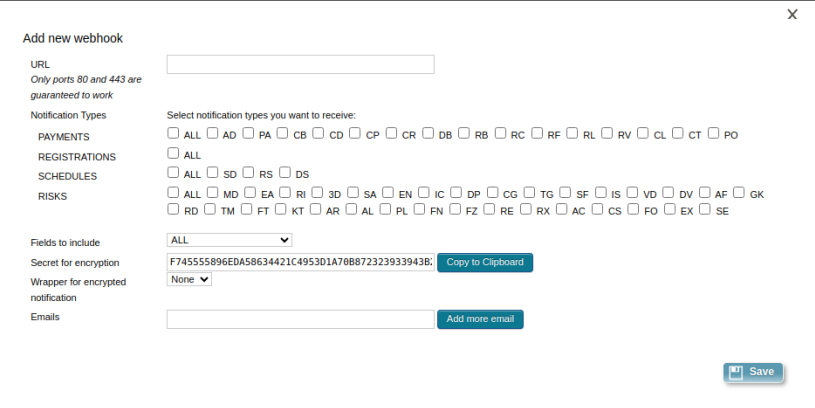
Follow further steps below to configure Webhook
- URL: Get the webhook URL from OpenCart plugin admin configuration page.
- Notification types: Select the notification types as required by the merchant
- Fields to include: Select the option as required by the merchant
- Secret for encryption: (Copy the value and add in the “Webhook Decryption Key” field under general settings in OpenCart check Sample Configuration)
- Wrapper for encrypted notification: JSON
- Emails: Enter email IDs to receive a notification alert
- Save
Figure 7: Webhook configuration (continued)
Features
Payment types
| Payment Type | Supported | Comments | |
|---|---|---|---|
| Authorization (PA) | ✔ | ||
| Debit (DB) | ✔ | ||
| Credit (CD) | – | ||
Capture (CP) | Full | ✔ | |
| Partial | ✔ | ||
| Multiple | ✔ | ||
Refund (RF) | Full | ✔ | |
| Partial | ✔ | ||
| Multiple | ✔ | ||
Reversal (RV) | Full | ✔ | |
| Partial | – | ||
| Multiple | – | ||
| Receipt (RC) | – | ||
| Rebill (RB) | – | ||
Note - Some functionalities available in the plugin might not be supported by the connector in use. Please refer to the respective connector integration sheet for details.
Features
We have standard plugin integration with OpenCart using our Open Payment Platform Integration option, that give you access across all the features and uses the COPYandPAY to present payment options to your shoppers
| Feature | Supported | Comments | |
|---|---|---|---|
| Supported Brands | ✔ | ALL Note - VISA, Mastercard, Amex, PayPal, Klarna, Apple and Google Pay are the brands certified internally, Plugin integration can adopt other card and APM brands, for any additional field support specific to APM or card please contact your account manager. | |
| Supported Payment Methods | ✔ | Credit Card, Virtual Account | |
| Countries | ✔ | ALL (if OpenCart is in countries) | |
| Authorization Currencies | ✔ | ALL | |
| Late Notification | ✔ | ||
Payment Facilitator | – | ||
| Recurring/Subscription | ✔ | To be enabled in production on demand. | |
| Reference ID | ✔ | ||
| Timeout Autoreversal | ✔ | ||
| TLS 1.2 | ✔ | ||
| Internal Tokenization | – | ||
| Omni Tokenization | – | ||
| External Tokenization | – | ||
| Zero Authorization/ Account Verification | – | ||
| Digital Wallet | ✔ | Apple Pay, GooglePay | |
| 3D Secure | ✔ | Using our MPI | |
| Airline Data | – | ||
| Settlement Reporting | – | Settlement reporting is as per the specific brand connector in use. | |
| COPYandPAY OneClick Checkout (Save Card) | ✔ | ||
| COPYandPAY widget or full page redirect | ✔ | ||
| Customization through standard COPYandPAY JS | ✔ | using wpwlOptions | |
| Customization through standard COPYandPAY CSS | ✔ | using wpwlOptions | |
| PayByLink | – | ||
| Manage Saved Card in User Profile | – | ||
| Download Audit Log | ✔ | Enable this through OpenCart Support | |
| Guest Checkout | ✔ | ||
| Transaction identifier | ✔ | merchantTransactionID | |
| Fast Checkout | – | ||
| Fraud with Payment | ✔ | ||
| Standalone Fraud | – | ||
| PCI DSS 4 | ✔ | ||
Supported fields
As part of the integration with the plugin platform we have integrated the below fields, Please note this is only informational, you don't need to worry about how to send these fields or integrate them. Plugin extension takes care of it.
Note - the below fields are supported as standard, if any specific fields need to be supported for APM for Card brand please get in touch with your account manager.
entityIdamountcurrencyintegritymerchantTransactionIdtestModepaymentTypecustomer.givenNamecustomer.surnamecustomer.emailcustomer.merchantCustomerIdcustomer.ipbilling.street1billing.street2billing.citybilling.statebilling.postcodebilling.countryshipping.street1shipping.street2shipping.cityshipping.stateshipping.postcodeshipping.countryshipping.customer.emailshipping.customer.givenNameshipping.customer.surnamecart.items[n].namecart.items[n].merchantItemIdcart.items[n].quantitycart.items[n].pricecart.items[n].currencycart.items[n].totalTaxAmountcart.items[n].taxcart.items[n].totalAmount
Resources
- Installation guide (PDF): OpenCart cloud installation guide
- Marketplace listing: https://www.opencart.com/index.php?route=marketplace/extension/info&extension_id=46697
- Demo storefront (test environment): https://uat-aci-oct.tryzens-ignite.com/