
Mobile Payments
The Mobile section is used to configure mobile wallet integrations and cryptographic material required for mobile payment token processing. It provides dedicated configuration areas for Apple Pay and Samsung Pay. The Mobile Payments section is accessible by navigating to Admin > Mobile. From this section you can configure the following mobile payment methods:
- Apple Pay in App
- Apple Pay on the Web
- Samsung Pay
Figure 1: Admin – Mobile overview
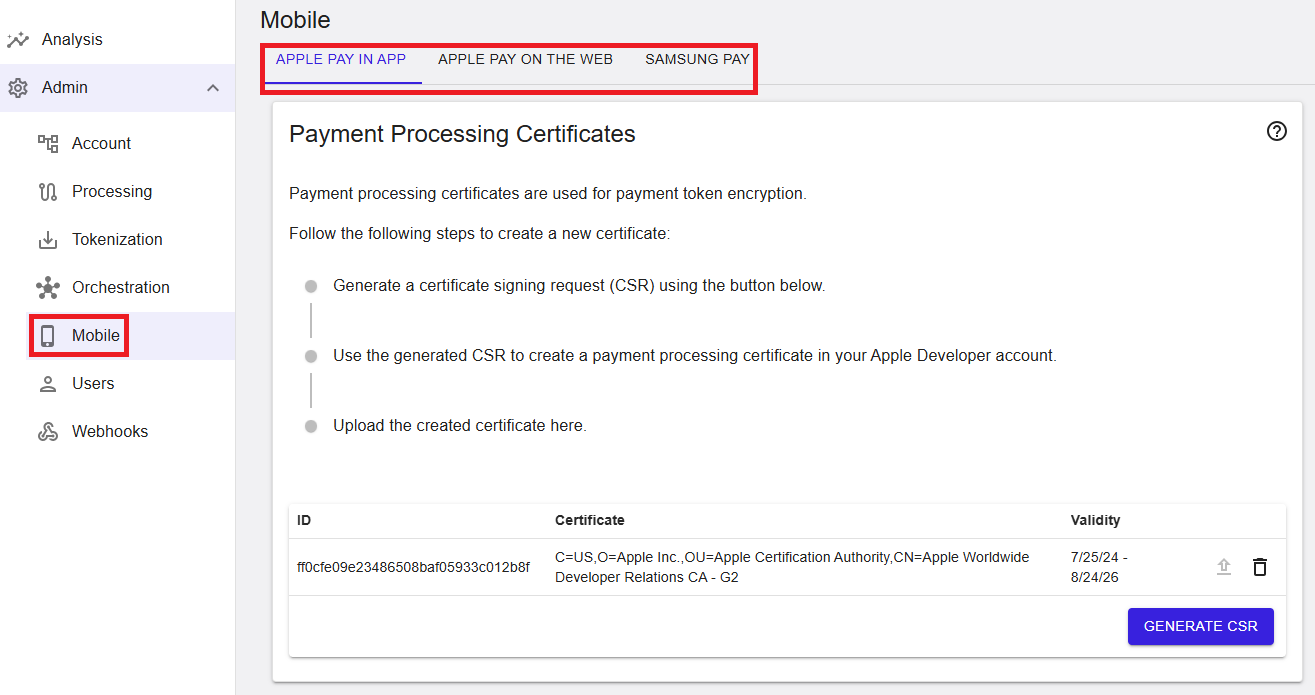
Where to find this screen
- In the left navigation menu, select Admin.
- Select Mobile.
Mobile Tabs
The Mobile section is organized into tabs at the top of the page:
- APPLE PAY IN APP
- APPLE PAY ON THE WEB
- SAMSUNG PAY
Each tab provides configuration specific to the selected mobile payment method.
Apple Pay In App
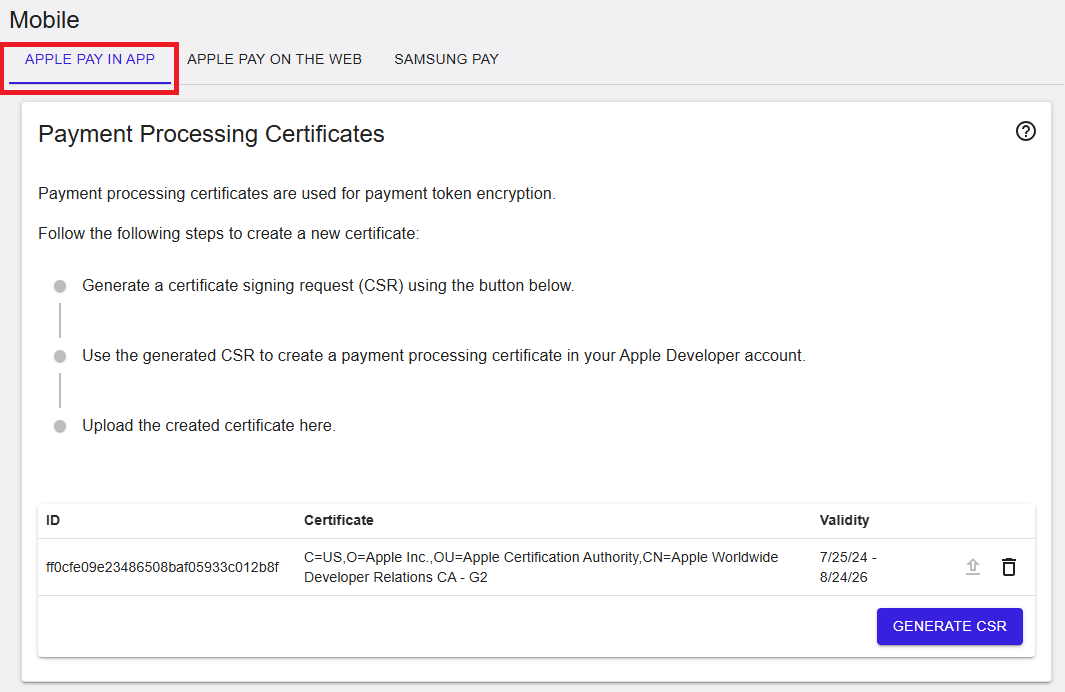
To configure Apple Pay in App, click the Apple Pay in App tab. Apple Pay uses payment processing certificates for payment token encryption in mobile applications.
Figure 2: Apple Pay In App – Payment Processing Certificates
Payment Processing Certificates
Apple Pay uses payment processing certificates for payment token encryption. Follow the steps below to create a new certificate.
Step 1 — Generate a Certificate Signing Request (CSR)
Click the Generate CSR button. A form will appear prompting you to enter the following optional parameters:
- Common Name
- Organisational Unit
- Organisational Name
- Location
- State
- Country
Click OK to generate the CSR. The new CSR will be created and listed in the table of available CSRs.
ℹ️ You can generate up to two payment processing certificates.
Step 2 — Create a Payment Processing Certificate with Apple
Using the generated CSR, create a payment processing certificate in your Apple Developer account.
Step 3 — Upload the Certificate
Once you have received the certificate from Apple, return to this screen and click Upload Certificate to upload it to the portal.
Existing certificates are displayed in a table, including:
- ID – Internal identifier.
- Certificate – Certificate subject details.
- Validity – Certificate validity period.
Apple Pay on the Web
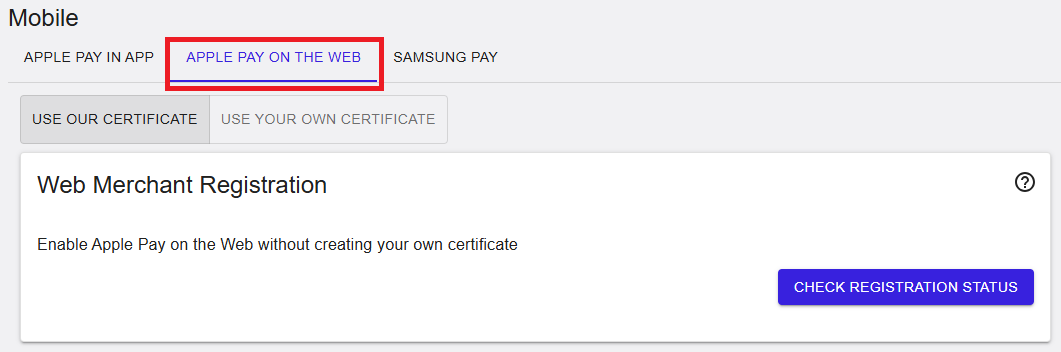
The Apple Pay on the Web tab is used to configure Apple Pay for browser-based transactions. For Apple Pay on the Web, there are two ways to configure payment processing:
Figure 3: Apple Pay on the Web – Web Merchant Registration
Web Merchant Registration
Use Your Certificate
This process follows the same steps as Apple Pay in App and applies to both the Merchant Identity Certificate and the Payment Processing Certificate.
Step 1 — Generate a CSR
Click the Generate CSR button to create a new CSR. Once generated, the CSR will be listed in the portal and will be ready for certificate upload.
Step 2 — Create a Certificate in the Apple Developer Portal
Using the generated CSR, navigate to the Apple Developer Portal and use it to generate the corresponding certificate.
Step 3 — Upload the Certificate
Return to the portal and click Upload Certificate to upload the certificate directly on screen.
Use Our Certificate
As an alternative, you can use the platform's merchant identity certificate to enable Apple Pay on the Web. This allows you to register your domains without the need to create or manage your own certificate.
Step 1 — Check Registration Status
Select the desired entity in the account tree and click Check Registration Status. The list of domains currently registered under this entity will be displayed.
Step 2 — Register a New Domain
Enter the domain name in the Domain Name field and click Register. The domain will be automatically registered using the platform's certificate.
Step 3 — Host the Domain Association File
Download the Apple Developer Merchant ID Domain Association file by clicking Download, then host it on the registered domain at the required well-known path, as specified by Apple.
Samsung Pay
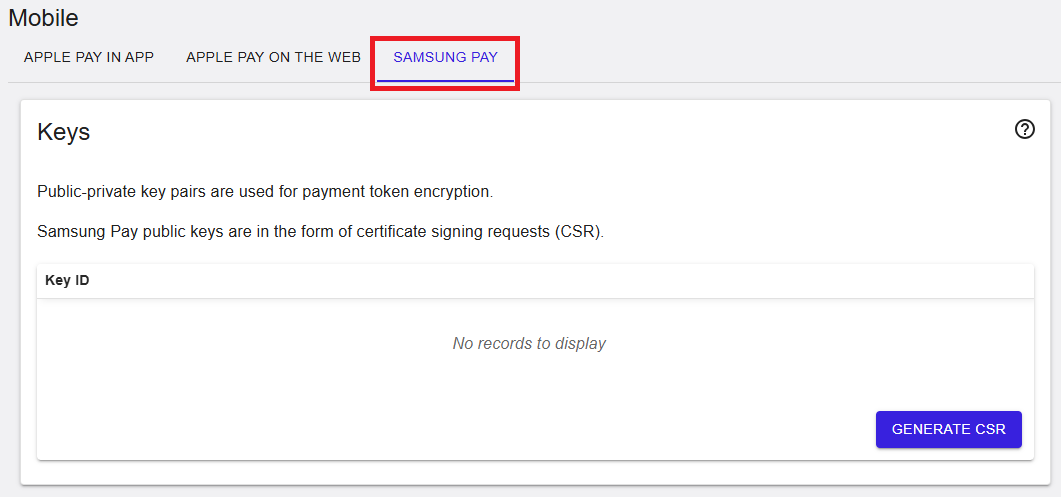
The Samsung Pay tab is used to manage cryptographic key material required for Samsung Pay payment token encryption. To process transactions with Samsung Pay, public-private key pairs are used for payment token encryption and decryption. Samsung Pay public keys take the form of a Certificate Signing Request (CSR).
Figure 4: Samsung Pay – Keys
Keys
Samsung Pay uses public–private key pairs for payment token encryption. Public keys are generated as Certificate Signing Requests (CSR).
Step 1 — Generate a CSR
Click the Generate CSR button. A form will appear prompting you to enter the following optional parameters:
- Common Name
- Organisational Unit
- Organisational Name
- Location
- State
- Country
Step 2 — Download the CSR
After the CSR is generated successfully, a confirmation dialogue will display the CSR value ready for download. Click Download to save the file to your system for future use.
⚠️ The CSR value is only accessible at the time of generation. Once the dialogue is closed, it cannot be retrieved again. Ensure you download and store it securely before proceeding.
Step 3 — Share the Public Key with Samsung Pay
Share the downloaded public key (CSR) with Samsung Pay. The corresponding private key is stored securely within the platform.
ℹ️ You can generate up to two public-private key pairs.
- Select GENERATE CSR to create a new CSR.
- Generated keys (if any) are listed in the table.
If no records are shown, this indicates that no Samsung Pay keys have been generated yet.
Summary
The Admin → Mobile section provides configuration for mobile wallet integrations, including Apple Pay (in-app and web) and Samsung Pay. It enables management of certificates and cryptographic keys required for secure payment token processing. Availability of actions depends on user permissions and the selected hierarchy level.