
Google Pay Integration via UCP and ACI Worldwide
Last updated: July 8, 2026
Overview
Learn how a Google AI agent uses Universal Commerce Protocol (UCP) and Google Pay to complete a checkout and process payments through ACI Worldwide (OPPWA).
This guide is a practical implementation of the concepts introduced in the Agentic Commerce overview. It demonstrates how UCP handles checkout orchestration while Google Pay provides tokenized payment credentials that are processed by ACI Worldwide.
At a high level:
AI Agent → UCP Checkout → Google Pay Token → POST /checkout-sessions/{id}/complete → ACI /v1/payments → Approved Transaction
Payment Flow
The following sequence shows how the shopper, AI Agent (Platform), merchant, Google Pay, ACI Worldwide (OPPWA), and the acquiring network interact during checkout and payment processing.
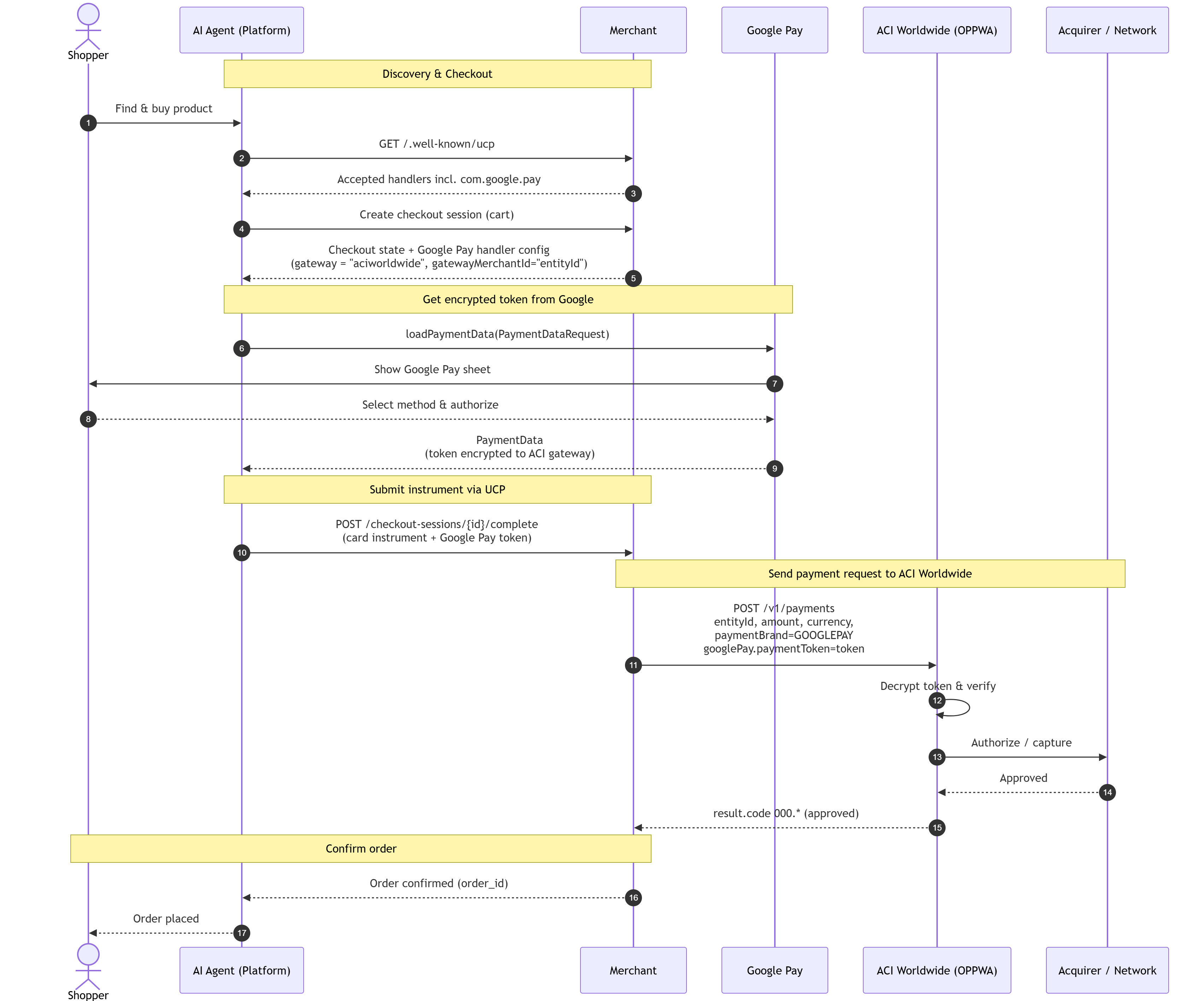
The AI Agent acquires a Google Pay token during checkout and submits it as the UCP payment instrument. The merchant backend then charges the transaction through ACI Worldwide.
- The shopper finds and selects a product through the AI Agent.
-
The AI Agent retrieves the merchant's UCP profile using
GET /.well-known/ucp. -
The merchant returns accepted payment handlers, including
com.google.pay. - The AI Agent creates a checkout session using the shopper's cart.
- The merchant returns the checkout state and Google Pay handler configuration.
- The AI Agent requests payment data from Google Pay.
- Google Pay displays the payment sheet.
- The shopper selects a payment method and authorizes the purchase.
- Google Pay returns payment data containing the encrypted payment token.
-
The AI Agent submits the payment instrument using
POST /checkout-sessions/{id}/complete. -
The merchant backend submits the payment request to ACI Worldwide using
POST /v1/payments. - ACI Worldwide decrypts and validates the token.
- ACI Worldwide submits the authorization request through the acquiring side.
- The acquirer / network returns the authorization result.
- ACI Worldwide returns the transaction result to the merchant.
- The merchant confirms the order and generates an order ID.
- The AI Agent confirms the transaction to the shopper.
Requirements
To follow this integration, accounts and approvals are required on the Google Pay side, the ACI Worldwide side, and the UCP integration side.
Google Pay
- Google Pay & Wallet Console account.
- Google Pay Merchant ID for the PRODUCTION environment.
- Google Pay API Terms of Service accepted.
- ACI Worldwide configured as the selected payment processor / gateway.
ACI Worldwide
- ACI account with a valid
entityId. - API access token for TEST and PRODUCTION environments.
- Configuration enabled for
paymentBrand=GOOGLEPAY. - Supported card brands enabled according to the merchant setup.
-
TEST endpoint:
https://eu-test.oppwa.com -
PRODUCTION endpoint:
https://eu-prod.oppwa.com
UCP / Agent Side
- Merchant UCP profile published at
/.well-known/ucp. - Checkout endpoints supporting create, update, and complete operations.
- AI Agent integrating both UCP and Google Pay.
- Server-side backend responsible for processing payment requests through ACI Worldwide.
Configure the Google Pay Handler
The com.google.pay payment handler must be declared in the merchant's UCP profile and returned in checkout responses.
The handler configuration includes the Google Pay tokenization settings that instruct Google to generate a payment token specifically for ACI Worldwide processing.
Google Pay creates an encrypted payment token based on the payment gateway configuration. The token generated for ACI Worldwide can be processed only by the configured ACI payment setup.
Important Parameters
| Parameter | Purpose |
|---|---|
gateway |
Tells Google Pay to create a token for the ACI Worldwide payment gateway. |
gatewayMerchantId |
Identifies the ACI Channel entity configuration used for tokenization and payment processing. |
Return the same payment handler declaration in checkout responses so the AI Agent uses the correct configuration and the platform enforces the correct checkout requirements for that session.
{
  "payment_handlers": {
    "com.google.pay": [
      {
        "id": "<handler_instance_uuid>",
        "version": "2026-01-23",
        "config": {
          "environment": "TEST",
          "merchant_info": {
            "merchant_name": "{{MERCHANT_NAME}}",
            "merchant_id": "{{GOOGLE_PAY_MERCHANT_ID}}"
          },
          "allowed_payment_methods": [
            {
              "type": "CARD",
              "tokenization_specification": {
                "type": "PAYMENT_GATEWAY",
                "parameters": {
                  "gateway": "aciworldwide",
                  "gatewayMerchantId":
                    "{{ACI_GATEWAY_ENTITY_ID}}"
                }
              }
            }
          ]
        }
      }
    ]
  }
}The values shown above are examples only. Replace all placeholder values with your production or test configuration before deployment.
Process Payment
Payment processing consists of two stages:
- The AI Agent obtains the encrypted Google Pay token and submits it through UCP.
- The merchant backend submits the payment request to ACI Worldwide.
Submit Payment Instrument via UCP
The AI Agent maps the Google Pay token into a UCP payment instrument and submits it to:
POST /checkout-sessions/{id}/complete
The merchant receives the encrypted token inside the UCP Payment object.
{
  "payment": {
    "instruments": [
      {
        "id": "instr_1",
        "handler_id": "<handler_instance_uuid>",
        "type": "card",
        "selected": true,
        "brand": "visa",
        "last_digits": "1111",
        "credential": {
          "token":
            "<encrypted Google Pay token JSON>"
        }
      }
    ]
  }
}
Send Payment Request to ACI Worldwide
After receiving the token, the merchant backend submits a server-to-server payment request using the standard OPPWA payment endpoint.
Use:
paymentBrand=GOOGLEPAY
and pass the encrypted Google Pay token as received from Google Pay.
POST https://eu-test.oppwa.com/v1/payments

Authorization: Bearer {{ACI_ACCESS_TOKEN}}

entityId={{ACI_ENTITY_ID}}
amount=49.99
currency=USD
paymentType=PA
paymentBrand=GOOGLEPAY
googlePay.paymentToken=
<url-encoded Google Pay token>ACI Worldwide decrypts the Google Pay token, validates the payment data, performs authorization through the acquiring side, and returns the transaction result to the merchant backend.
In Google's TEST environment, a payment response may return summary data suitable for a confirmation screen but not necessarily a chargeable token. Use Google's test card suite or sample payment tokens when validating the end-to-end ACI integration.
Result Codes
Treat the transaction as successful only when result.code matches an approved pattern.
| Result Code Pattern | Meaning |
|---|---|
000.000.* |
Successful transaction. |
000.100.1* |
Successfully processed in the TEST environment. |
000.200.* |
Pending or still open. |
| All other values | Declined transaction or processing error. |
On an approved result code, finalize the order and return the order ID to the AI Agent.
On decline, return a UCP payment error so the AI Agent can prompt the shopper accordingly.
Always validate
result.code returned by ACI Worldwide before confirming the order and presenting a successful purchase outcome to the shopper.
Test and Go Live
Testing
Before moving to production, verify the complete flow from Google Pay token generation through UCP checkout completion and ACI payment processing.
- Set the payment handler environment to TEST.
-
Use the ACI TEST endpoint:
https://eu-test.oppwa.com - Use Google's test card suite or sample payment tokens.
- Verify successful token acquisition from Google Pay.
-
Verify submission through
POST /checkout-sessions/{id}/complete. - Verify payment processing through ACI Worldwide.
- Test approval, decline, and pending transaction scenarios.
- Confirm correct error handling and shopper messaging.
Go Live
Once testing is complete, update the integration for production use.
- Complete Google Pay production onboarding and approval processes.
-
Switch the Google Pay environment from
TESTtoPRODUCTION. - Configure the production Google Pay Merchant ID.
- Use production ACI credentials.
-
Switch payment requests to:
https://eu-prod.oppwa.com - Execute a low-value live transaction.
- Verify settlement and transaction reporting.
- Confirm operational monitoring before enabling broad usage.
Verify that Google Pay Merchant IDs, ACI credentials, supported card networks, gateway configuration, and environment settings are all aligned before enabling production traffic.