
COPYandPAY – SAQ-A compliant
Last updated: November 5, 2026
Overview
COPYandPAY is a JavaScript payment widget that sends sensitive payment data directly and securely from the shopper’s browser to the Open Payment platform.
SAQ-A compliance
For credit card payments, the widget provides a payment form. Important and sensitive input fields are embedded inside iframe elements. This makes the form SAQ-A compliant. An iframe is an inline frame used to show one webpage inside another. For COPYandPAY, the iframe fields are in the gateway domain and as such, the merchant cannot access the data entered into these fields by the purchaser.
For detailed information on how to configure and use COPYandPAY, see the COPYandPAY integration guide.
SAQ-A configuration
A basic credit card form has input fields for Card Number, Expiry Date, Card Holder and CVV. By default, Card Number and CVV are rendered inside an iframe. This cannot be altered.
However, the COPYandPAY payment widget can be configured by providing a JavaScript object named “wpwlOptions” in the webpage. For details of the configuration options, see the COPYandPAY API reference.
To enable full SAQ-A compliance, the configuration option “enableSAQACompliance” must be set to true (the default setting is false). Enabling this feature will ensure that the Card Number, Expiry Date, Card Holder and CVV input fields are all rendered inside a separate iframe.
One-Click Checkout
One-Click Checkout payments are performed with credit cards that have been registered using COPYandPAY tokenization. Storing the credit card information makes the payment process faster. It is possible to register credit cards without the card holder details. In such cases, a merchant can request that the shopper provide the card holder information to the gateway. The input field for the card holder is, by default, not rendered inside an iframe. To provide SAQ-A compliance for this field, set “enableSAQACompliance” to true.
- For more information about tokenization, see Registration Tokens.
- For more information about One-Click Checkout, see One-Click Payment.
Examples
Basic default credit card form
let wpwlOptions = {
    style: "card"
}
The “enableSAQACompliance” setting is set to the default value of false.
Figure 1: Basic default credit card form
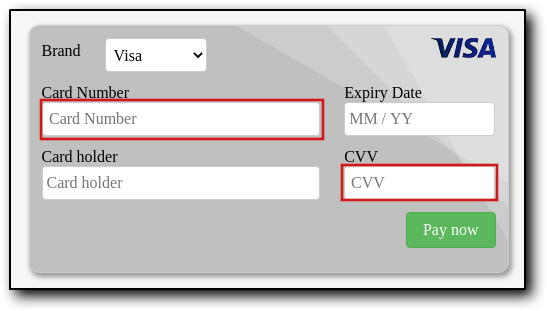
Card Number and CVV rendered in iframe elements.
Fully SAQ-A compliant credit card form
let wpwlOptions = {
    style: "card",
    enableSAQACompliance: true
}
Figure 2: Fully SAQ-A compliant credit card form
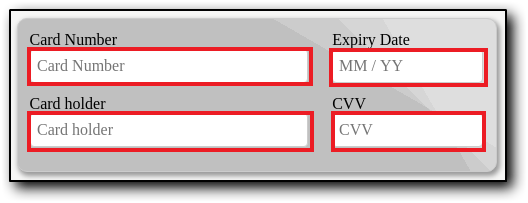
Card Number, Expiry Date, Card Holder and CVV rendered in iframe elements.
The payment must be submitted using the widget’s JavaScript function. When testing on this portal, you can press the Enter key on your keyboard instead.
wpwl.executePayment("wpwl-container-card")Basic One-Click form
let wpwlOptions = {
    style: "card"
}
The “enableSAQACompliance” setting is set to the default value of false.
Figure 3: Basic One-Click form
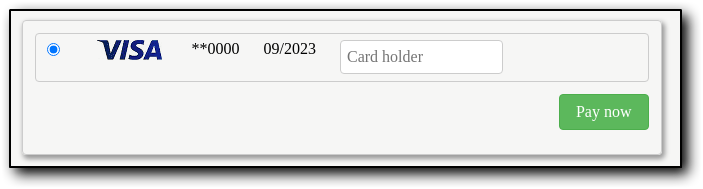
Card Holder unprotected, NOT inside an iframe.
Fully SAQ-A One-Click form
let wpwlOptions = {
    style: "card",
    enableSAQACompliance: true
}
Figure 4: Fully SAQ-A One-Click form
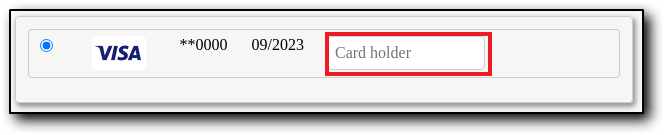
Card Holder rendered in an iframe.
When testing on this portal, you can press the Enter key on your keyboard.
Autofill
Autofill is a feature offered by most browsers to help reduce typing. It works with names, addresses, and payment methods.
If there is a saved card, the browser can detect a payment form and offer an option to autofill the form.
There are two different scenarios when auto-filling COPYandPAY, depending on the input field which is selected for the autofill: Card Number or Card Holder.
Autofill card number
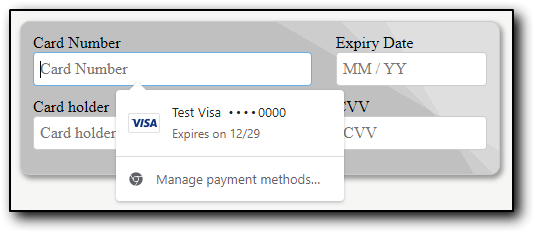
Once the Card Number field is selected, the browser offers an autofill as follows:
Figure 5: Autofill offered for the Card Number field
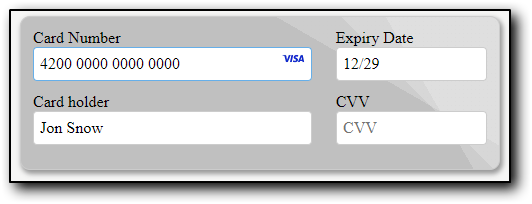
Once chosen, not only the card number is filled in, but also the card holder and expiry date.
Figure 6: Form filled in after choosing the autofill option (Card Number selected)
Autofill card holder
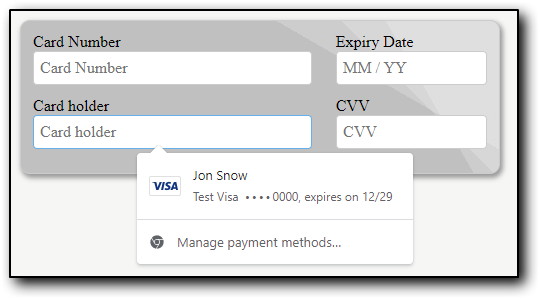
Once the Card Holder field is selected, the browser offers an autofill as follows:
Figure 7: Autofill offered for the Card Holder field
Once chosen, not only the card holder is filled in, but also the card number and expiry date.
Figure 8: Form filled in after choosing the autofill option (Card Holder selected)
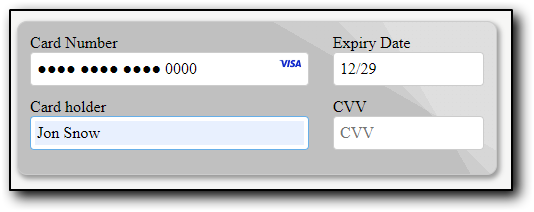
Note that the card number is masked except for the last four digits for security reasons.