
3D Secure Settings
One of the most important external risk checks is the 3D Secure check. The 3D Secure Settings allow you to activate and deactivate 3D Secure and 3D Secure passthrough for the given entity level (PSP, Merchant, Division, Channel).
The configuration has to be done in two places:
- The general 3D Secure setup in Risk Management → Risk Checks → External Checks → 3D Secure Settings.
- Under each individual Merchant Account, for the merchant-specific settings (see Merchant Account Settings).
ℹ️ Note: Before performing any configuration, make sure that all merchants are properly enrolled by the card schemes. Refer to the 3D Secure 2.x Merchant Enrollment Guide for details.
Figure 1: Risk Management – 3D Secure Settings overview
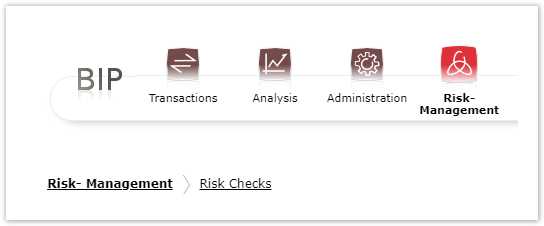
Where to find this screen
- In the left navigation menu, select Risk Management.
- Select Risk Checks, then External Checks.
- Select 3D Secure Settings.
Card Brand Settings
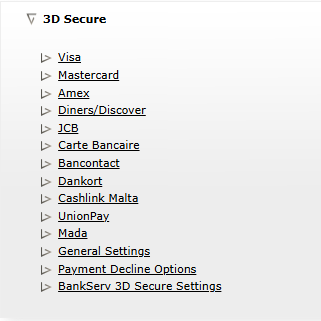
For each supported card brand, you define whether its transactions are authenticated with 3D Secure and which 3D Secure server is used.
Figure 2: 3D Secure settings per card brand
ℹ️ Note: To enable 3D Secure for a brand, make sure you change the setting Enable 3D Secure 2 by changing the MPI type.
Figure 3: MPI type setting
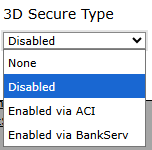
The following values can be selected for a card brand:
| Value | Behavior |
|---|---|
| Disabled | Transactions of this brand are not authenticated. |
| Inherited | Inherits the value from the entity above. |
| Enabled via ACI | Transactions of this brand are authenticated using ACI's 3D Secure Server. |
| Enabled via BankServ | Transactions of this brand are authenticated using the BankServ 3D Secure Server. |
The values available depend on the card brand:
| Setting | Available values |
|---|---|
| Visa 3D Secure Mastercard 3D Secure Amex 3D Secure Diners/Discover 3D Secure JCB 3D Secure |
Disabled, Inherited, Enabled via ACI, Enabled via BankServ |
| Carte Bancaire 3D Secure Bancontact 3D Secure Dankort 3D Secure Cashlink Malta 3D Secure |
Disabled, Inherited, Enabled via ACI |
| MADA 3D Secure | Disabled, Inherited, Enabled via ACI (MADA DS), Enabled via ACI (co-brand DS) |
MADA options:
| Value | Behavior |
|---|---|
| Enabled via ACI (MADA DS) | MADA transactions are authenticated using ACI's 3D Secure Server. The transaction is routed to MADA's own Directory Server. |
| Enabled via ACI (co-brand DS) | Transactions are authenticated using ACI's 3D Secure Server. The transaction is routed to the MADA co-brand Directory Server. |
General Settings
The general settings control how 3D Secure is handled for registrations, mobile transactions, soft declines and missing browser or device data.
| Setting | Value | Behavior | Comment |
|---|---|---|---|
| Retry transactions with 3D Secure after issuer soft decline | true | When the transaction is declined with a 'soft decline', the gateway automatically retries the transaction by sending it first to a 3D Secure challenge, so that it is authenticated by the cardholder. | If the transaction is declined with a 'soft decline', it is marked with the return code 300.100.100. |
| false | When the transaction is declined with a 'soft decline', the gateway returns the response to the merchant with the return code 300.100.100 and processing stops. |
||
| Execute 3D Secure for registrations | true | For standalone card tokenization (without a payment transaction), 3D Secure is triggered and the cardholder has to authenticate before the card details are stored. | |
| false | Standalone card tokenization is done without 3D Secure authentication. | ||
| Use non-payment authentication (NPA) for account verification transactions (zero amount PA) | true | For authorizations (payment type PA) with zero amount, the 3D Secure transaction is sent as a non-payment authentication. | More about NPA: https://test.docs.oppwa.com/tutorials/threeDSecure/NPA |
| false | For authorizations (payment type PA) with zero amount, the 3D Secure transaction is sent as a regular payment authentication. The 3D Secure transaction is sent to the card scheme with zero amount. | ||
| Set mSDK flow | app | The mSDK initiates the app-based authentication flow. | Minimum version 3.4.0 of the mSDK is required. |
| web | The mSDK initiates the web-based authentication flow. | ||
| disabled | 3D Secure is disabled for all mobile transactions using the mSDK. | ||
| Skip 3D Secure if browser or device data are missing | true | If browser or device data is not sent, 3D Secure is skipped instead of the transaction being rejected. | |
| false | If browser or device data is not sent, 3D Secure is attempted. This will likely result in a rejected transaction, as this information is mandatory for most major schemes. |
Payment Decline Options
These options define in which cases a payment transaction is declined and not sent to the acquirer.
Decline payment transaction in case of:
| Setting | Value | Behavior |
|---|---|---|
| No liability shift | true | If the 3D Secure transaction outcome provides no liability shift for the benefit of the merchant, the payment transaction is not sent to the acquirer. |
| false | If the 3D Secure transaction is declined with an error code starting with '000.400' and the outcome provides no liability shift for the benefit of the merchant, the payment transaction is sent to the acquirer. | |
| 3DS configuration error | true | If 3D Secure is not properly set up in BIP (for example, a field is missing), the payment transaction is not sent to the acquirer but fails immediately with the error code 100.390.106 "Transaction rejected because of error in 3DSecure configuration". |
| false | If 3D Secure is not properly set up in BIP (for example, a field is missing), the payment transaction is still sent to the acquirer. | |
| Technical error (legacy setting) | true | In the case of any technical error in the 3D Secure processing, the payment transaction is not sent to the acquirer. |
| false | In the case of any technical error in the 3D Secure processing, the payment transaction is still sent to the acquirer. | |
| Card is not enrolled for 3D Secure | true | If the card is not enrolled for 3D Secure, the payment transaction is automatically rejected and not sent to the acquirer. |
| false | If the card is not enrolled for 3D Secure, the payment transaction is sent to the acquirer and not rejected by the gateway. |
BankServ 3D Secure Settings
⚠️ Warning: The following settings work only if BankServ 3D Secure is used.
| Setting | Value | Behavior |
|---|---|---|
| Default merchant transaction type for BankServ 3D Secure |
01 Goods/Service purchase 03 Check Acceptance 10 Account Funding 11 Quasi-Cash transaction 28 Prepaid activation and load |
Choose a default merchant transaction type that is automatically sent in each request to the BankServ 3DS 2 MPI, so that you do not need to send this data with every request. |
| Set Acquirer URL with processorId for BankServ 3D Secure |
Available acquirer URLs: ABSA Nedbank FNB I&M Standard Bank |
The merchant or PSP needs to obtain the processor ID from the acquirer and use it in the acquirer URL (## is the placeholder for the processor ID). The transaction fails without the processor ID. |
| Allow 3D Secure for virtual cards | true | 3D Secure is done for virtual cards. |
| false | 3D Secure is disabled for virtual cards. |
Merchant Account Settings
Make sure that 3D Secure is activated in the Merchant Account and that the mandatory fields are populated.
Figure 4: Merchant Account – 3D Secure fields
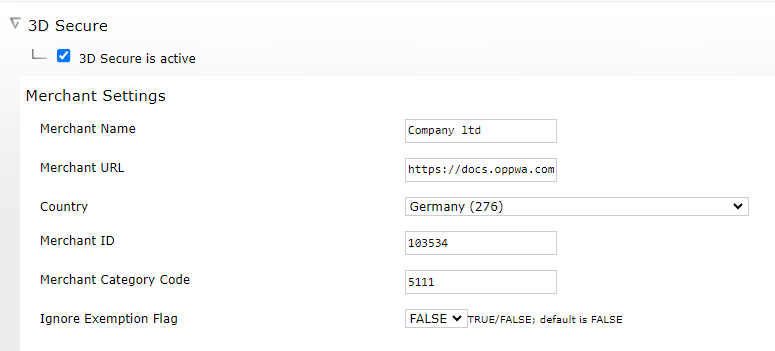
The following fields are configured at Merchant Account level:
| Field name | Mandatory/Optional | Comment | Format |
|---|---|---|---|
| Merchant category code | Mandatory |
Length: 4 Format: Numeric |
|
| Merchant country code | Mandatory |
Length: 3 Format: Numeric |
|
| Merchant name | Mandatory | Merchant name assigned by the Acquirer or Payment System. |
Maximum length: 40 Format: Alphanumeric |
| Merchant ID | Mandatory | Acquirer-assigned Merchant identifier. |
Maximum length: 35 Format: Alphanumeric |
| Merchant URL | Mandatory | Fully qualified URL of the 3D Secure Requestor (merchant) website or customer care site. |
Fully qualified URL. For example: |
| Ignore Exemption Flag | Optional |
False: If an exemption flag is present in the request, the transaction is processed with the appropriate exemption. True: If an exemption flag is present in the request, it is ignored and the transaction is processed with 3D Secure without an exemption request. |
Under each supported brand, configure the necessary fields per card scheme.
Figure 5: Merchant Account – brand fields
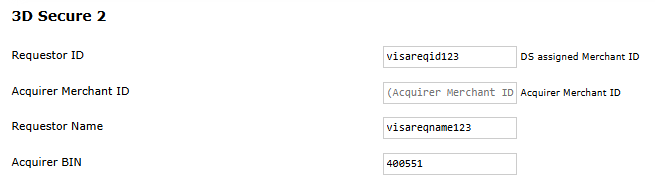
| Field name | Mandatory/Optional | Comment | Format |
|---|---|---|---|
| Requestor ID | Mandatory | DS-assigned 3D Secure Requestor identifier. |
Maximum length: 35 Format: Alphanumeric |
| Acquirer Merchant ID | Optional | Acquirer-assigned Merchant identifier. Overrides the "Merchant ID" set above if it is set for a specific brand. |
Maximum length: 35 Format: Alphanumeric |
| Requestor Name | Mandatory | DS-assigned 3D Secure Requestor name. |
Maximum length: 40 Format: Alphanumeric |
| Acquirer BIN | Mandatory | BIN of the acquiring bank. |
ℹ️ Note: The Acquirer Merchant ID sent for the CARTEBANCAIRE brand is composed of
two elements: Merchant ID (ANS15) + "-" + Terminal ID (ANS8). The values are right-padded with spaces.
For example, Merchant ID = 60010023 and Terminal ID = 55555555 result in the Acquirer Merchant ID
"60010023 -55555555". For all other brands, the Merchant ID is mapped directly to the Acquirer Merchant ID.
Summary
The 3D Secure Settings provide a centralized way to control how 3D Secure authentication is applied across PSP, Merchant, Division and Channel levels. Card brand settings define which 3D Secure server authenticates each brand, general settings and payment decline options define how special cases are handled, BankServ settings apply only when BankServ 3D Secure is used, and the Merchant Account must contain the mandatory 3D Secure fields for authentication to work.